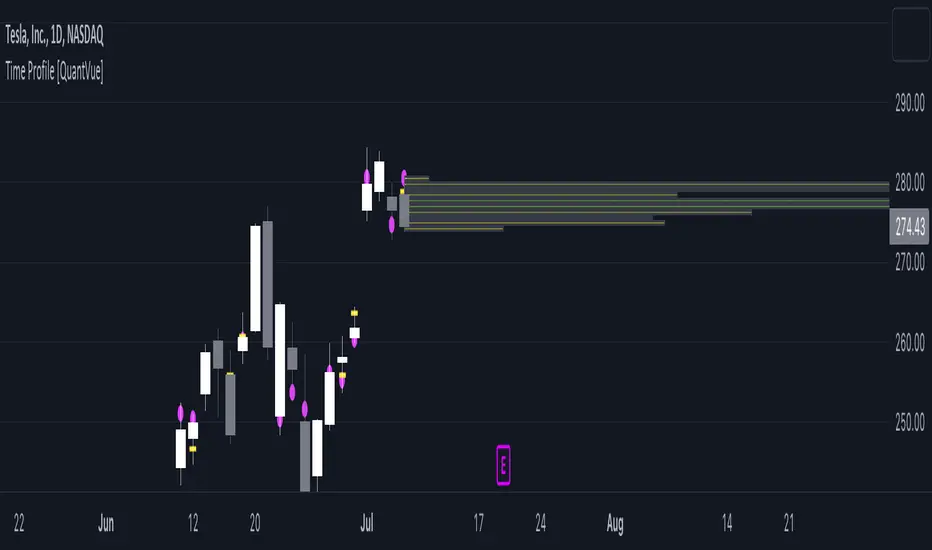
Time Profile [QuantVue]The Time Profile indicator provides traders with a comprehensive view of volume and time-based price activity. The indicator combines two essential components into one indicator: the volume profile and the time profile.
The volume profile represents the distribution of trading volume at different price levels over a specified period and is displayed as a circle on the chart.
It provides a visual representation of where the majority of trading volume occurred and often highlights significant support and resistance levels. The volume profile is calculated as the closing price of the highest volume intraday bar, based on the user selected lower time frame.
On the other hand, the time profile focuses on analyzing the time spent at certain price levels. The indicator divides the current bars range into 10 blocks and counts the number of user selected lower time frame closes within each time block.
The block with the most lower time frame closes in it is deemed the time point of control. Traders can use this information to identify time blocks where price movement was most significant.
The time profile is drawn on the Y axis of the current bar to allow for an easy visualization of where price spent most of its time. Historical time profiles are also noted on previous bars with a dash marking the level.
The Time Profile indicator offers several customization options. Traders can adjust the timeframe for the lower time frame data, decide whether to display the time profile, and customize colors for visual clarity.
Additionally, traders can choose to highlight instances where the Volume POC and Time POC align, indicating a strong concentration of volume and price activity.
Don't hesitate to reach out with any questions or concerns.
We hope you enjoy!
Cheers.
스크립트에서 "volume profile"에 대해 찾기
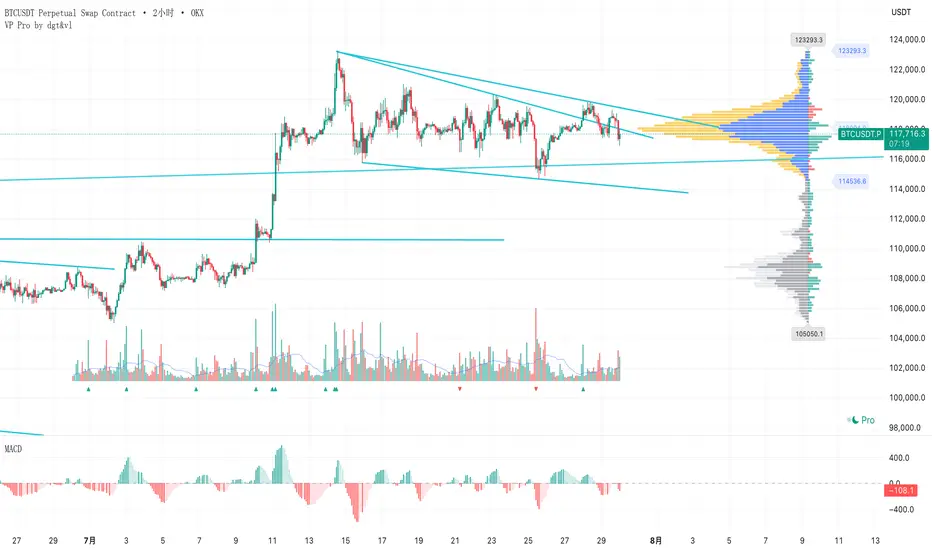
成交量分布与行为分析(VP)# 📊 成交量分布与价格行为分析指标使用说明
## 🌟 指标概述
**成交量分布与价格行为分析**是一个专业的TradingView指标,结合了传统的成交量分布分析(Volume Profile)和现代价格行为技术,为交易者提供全面的市场分析工具。
### ✨ 核心功能
- 📈 **成交量分布分析** - 显示特定价格区间的成交量集中度
- 🎯 **价格行为识别** - 智能识别关键价格水平和市场行为
- 📊 **情绪分布分析** - 展示买卖双方在不同价格的力量对比
- 🔄 **支撑阻力转换** - 自动检测支撑阻力的转换
- 📋 **专业统计信息** - 提供详细的市场数据统计
---
## 🛠️ 功能模块详解
### 1. 📊 成交量与情绪分布
#### 成交量分布
- **用途**: 显示在特定价格水平的成交量密度
- **解读**:
- 🟢 **绿色条形** = 上涨成交量(买盘主导)
- 🔴 **红色条形** = 下跌成交量(卖盘主导)
- 📏 **条形长度** = 成交量大小
#### 价值区域 (Value Area)
- **💎 价值区域上涨/下跌**: 68%成交量集中的区域
- **📈 VAH (Value Area High)**: 价值区域上边界
- **📉 VAL (Value Area Low)**: 价值区域下边界
- **🎯 POC (Point of Control)**: 成交量最大的价格水平
#### 情绪分布
- **🐂 看涨情绪**: 买盘力量占优势的价格区域
- **🐻 看跌情绪**: 卖盘力量占优势的价格区域
#### 供需区域
- **🔻 供应区域**: 卖压集中的低成交量区域
- **🔺 需求区域**: 买盘集中的低成交量区域
### 2. 🎯 价格行为分析
#### 关键价格提醒
- **🎯 POC附近**: 价格接近控制点时显示橙色圆点
- **⚡ VAH测试**: 价格测试价值区域高点时显示红色三角
- **🔥 VAL测试**: 价格测试价值区域低点时显示绿色三角
#### 成交量突破信号
- **🚀 突破确认**: 成交量异常放大时K线边框高亮
- **颜色含义**:
- 🟢 **绿色边框** = 上涨突破
- 🔴 **红色边框** = 下跌突破
#### 支撑阻力转换
- **🔄 阻力转支撑**: 突破VAH后显示蓝色虚线
- **🔄 支撑转阻力**: 跌破VAL后显示紫色虚线
### 3. 📊 成交量直方图
- **📈 绿色柱状**: 上涨K线的成交量
- **📉 红色柱状**: 下跌K线的成交量
- **📊 黄色线条**: 成交量移动平均线
- **🔄 翻转方向**: 可选择向上或向下显示
- **📍 位置控制**: 可放置在K线图上方或下方
---
## ⚙️ 参数设置指南
### 📊 成交量与情绪分布
| 参数 | 说明 | 推荐设置 |
|------|------|----------|
| **成交量分布** | 启用/禁用主要功能 | ✅ 开启 |
| **情绪分布** | 显示买卖情绪对比 | ✅ 开启 |
| **供需区域** | 显示供需失衡区域 | ✅ 开启 |
| **价值区域 (%)** | 成交量集中度 | 68% (默认) |
| **分布行数** | 价格精度 | 100行 |
| **分布宽度** | 显示宽度 | 31% |
| **回看长度** | 分析K线数量 | 360根 |
### 🎯 价格行为分析
| 参数 | 说明 | 建议设置 |
|------|------|----------|
| **关键价格提醒** | POC/VAH/VAL提醒 | ✅ 开启 |
| **POC敏感度** | POC提醒敏感度 | 0.2% |
| **VAH/VAL敏感度** | 边界测试敏感度 | 0.3% |
| **成交量突破信号** | 大成交量提醒 | ✅ 开启 |
| **成交量突破倍数** | 突破判定倍数 | 1.5倍 |
| **支撑阻力转换** | S/R转换线条 | ✅ 开启 |
| **显示风格** | 视觉强度 | 标准 |
### 📊 成交量直方图
| 参数 | 说明 | 建议 |
|------|------|------|
| **成交量直方图** | 启用直方图 | ✅ 开启 |
| **成交量MA** | 移动平均线 | ✅ 开启,21周期 |
| **位置** | 显示位置 | 顶部 |
| **翻转方向** | 方向控制 | ❌ 关闭 |
| **高度** | 显示高度 | 默认 |
| **垂直偏移** | 位置微调 | 1 |
---
## 📈 实战交易策略
### 🎯 策略一:POC回归交易
**设置要求**:
- ✅ 开启价格行为分析
- 🎯 POC敏感度: 0.2%
- 📊 成交量突破: 1.5倍
**交易信号**:
1. **🎯 橙色圆点出现** → 价格接近POC
2. **📊 成交量确认** → 等待成交量放大
3. **🚀 突破信号** → K线边框高亮时入场
**风险管理**:
- 止损:VAH/VAL边界
- 止盈:对侧价值区域边界
### 🔄 策略二:支撑阻力转换
**设置要求**:
- ✅ 开启支撑阻力转换
- 📏 线条长度: 5-10根K线
- ⚡ VAH/VAL敏感度: 0.3%
**交易信号**:
1. **🔵 蓝色虚线** → 阻力转支撑,看涨
2. **🟣 紫色虚线** → 支撑转阻力,看跌
3. **📊 成交量确认** → 配合大成交量
**适用市场**:
- 趋势行情
- 突破行情
- 区间震荡末期
### 📊 策略三:价值区域交易
**设置要求**:
- 💎 价值区域: 68%
- 📊 分布统计: 开启
- 🎨 显示风格: 标准
**交易逻辑**:
1. **价值区域内** → 区间交易策略
2. **价值区域上方** → 强势追多
3. **价值区域下方** → 弱势做空
4. **VAH/VAL测试** → 反弹/回调机会
---
## 🎨 显示风格选择
### 🔍 简约风格
- **适用**: 经验丰富的交易者
- **特点**: 提示非常低调,不影响图表阅读
- **推荐**: 专业交易员
### 📊 标准风格
- **适用**: 大多数交易者
- **特点**: 平衡的视觉效果,信息清晰
- **推荐**: 日常交易使用
### 🎯 醒目风格
- **适用**: 学习阶段的交易者
- **特点**: 信号明显,容易识别
- **推荐**: 新手交易者
---
## 🚨 警报设置
### 自动警报功能
- **🎯 POC穿越警报**: 价格突破控制点
- **📈 VAH突破警报**: 价格突破价值区域高点
- **📉 VAL突破警报**: 价格跌破价值区域低点
- **📊 高成交量警报**: 检测到异常成交量
- **🚀 成交量突破警报**: 确认突破信号
### 警报设置建议
1. 启用**POC穿越警报**用于关键点位提醒
2. 启用**成交量突破警报**用于入场确认
3. 根据交易风格选择性启用其他警报
---
## 📋 统计信息解读
### 右上角统计表格
| 项目 | 含义 | 用途 |
|------|------|------|
| **控制点** | 成交量最大的价格 | 关键支撑/阻力位 |
| **价值区域高点/低点** | 68%成交量边界 | 正常波动范围 |
| **总成交量** | 分析期间总成交量 | 市场活跃度 |
| **平均成交量/K线** | 平均K线成交量 | 成交量基准 |
| **价格行为** | 当前市场状态 | 实时分析结果 |
### 价格行为状态说明
| 状态 | 含义 | 操作建议 |
|------|------|----------|
| **🚀突破** | 成交量突破中 | 考虑追涨/追跌 |
| **🎯POC** | 接近控制点 | 关注反转机会 |
| **⚡VAH** | 测试价值区域高点 | 观察突破/回落 |
| **🔥VAL** | 测试价值区域低点 | 观察反弹/破位 |
| **↗上方** | 价值区域上方 | 强势市场 |
| **↘下方** | 价值区域下方 | 弱势市场 |
| **📊区域内** | 价值区域内 | 区间震荡 |
---
## 💡 使用技巧
### ✅ 最佳实践
1. **📊 多时间框架分析**:
- 高时间框架确定趋势
- 低时间框架寻找入场点
2. **🎯 关键水平确认**:
- POC作为主要支撑/阻力
- VAH/VAL作为次要关键位
3. **📈 成交量确认**:
- 突破必须配合成交量放大
- 低成交量突破谨慎对待
4. **🔄 动态调整**:
- 根据市场环境调整敏感度
- 趋势市场降低敏感度
- 震荡市场提高敏感度
### ❌ 常见误区
1. **过度依赖单一信号**: 需要多重确认
2. **忽略大趋势**: VP分析要结合趋势方向
3. **频繁调整参数**: 保持参数稳定性
4. **忽略风险管理**: 设置合理止损
---
## 🔧 故障排除
### 常见问题
**Q: 价格行为提示不显示?**
A: 检查以下设置:
- ✅ 确认"启用价格行为分析"已开启
- 🎨 调整"显示风格"为"醒目"
- 📊 降低敏感度设置
**Q: 成交量分布显示不完整?**
A: 调整以下参数:
- 📏 增加"回看长度"
- 📊 调整"分布行数"
- 📈 检查数据源
**Q: 警报过于频繁?**
A: 优化警报设置:
- 🎯 提高敏感度阈值
- 📊 增加成交量突破倍数
- ⏰ 选择关键警报类型
---
## 📞 技术支持
如有其他问题,请参考TradingView帮助文档或联系技术支持团队。
---
*💡 提示:该指标最适合用于股票、外汇、加密货币等具有充足成交量的市场。建议在使用前先在模拟环境中熟悉各项功能。*
# Volume Profile & Price Action Analysis Indicator
## Overview
This is a comprehensive **Volume Profile (VP)** indicator with advanced **Price Action Analysis** features, designed for professional trading on TradingView. It combines traditional volume profile analysis with sophisticated price behavior detection to provide traders with deeper market insights.
## 🎯 Key Features
### 📊 Volume Profile Analysis
- **Volume Distribution**: Visual representation of trading activity at different price levels
- **Point of Control (POC)**: Identifies the price level with highest volume
- **Value Area**: Highlights the price range containing 68% (customizable) of total volume
- **Sentiment Profile**: Shows bullish vs bearish sentiment at each price level
- **Supply & Demand Zones**: Identifies low-volume areas indicating potential breakout zones
### 🎯 Advanced Price Action Analysis
- **Key Price Level Alerts**: Smart detection when price approaches critical levels
- **Volume Breakout Signals**: Identifies significant volume spikes with visual confirmation
- **Support/Resistance Conversion**: Tracks when key levels flip their role
- **Real-time Price Behavior Status**: Live updates in statistics table
### 📈 Volume Histogram
- **Enhanced Volume Bars**: Visual volume representation with customizable placement
- **Volume Moving Average**: Overlay MA on volume for trend analysis
- **Flip Direction**: Option to invert histogram direction
- **Adjustable Height & Offset**: Full customization of visual appearance
## 🛠️ Configuration Guide
### Volume Profile Settings
| Parameter | Description | Default | Range |
|-----------|-------------|---------|--------|
| **Volume Profile** | Enable/disable main volume profile | ✓ Enabled | - |
| **Up Volume Color** | Color for bullish volume bars | Gray-Blue | Custom |
| **Down Volume Color** | Color for bearish volume bars | Gray | Custom |
| **Value Area %** | Percentage of volume for value area | 68% | 0-100% |
| **Profile Rows** | Resolution of volume profile | 100 | 10-150 |
| **Profile Width** | Width of volume profile bars | 31% | 0-250% |
### Price Action Analysis Settings
| Parameter | Description | Default | Range |
|-----------|-------------|---------|--------|
| **Enable Price Action** | Master switch for price analysis | ✓ Enabled | - |
| **Key Price Alerts** | POC/VAH/VAL proximity detection | ✓ Enabled | - |
| **POC Sensitivity** | Distance threshold for POC alerts | 0.2% | 0.1-1.0% |
| **VAH/VAL Sensitivity** | Distance threshold for value area alerts | 0.3% | 0.1-1.0% |
| **Volume Breakout Signals** | Large volume detection | ✓ Enabled | - |
| **Volume Threshold** | Multiplier for breakout detection | 1.5x | 1.2-3.0x |
| **Display Style** | Visual intensity of signals | Standard | Simple/Standard/Bold |
### Volume Histogram Settings
| Parameter | Description | Default | Range |
|-----------|-------------|---------|--------|
| **Volume Histogram** | Enable volume bars | ✓ Enabled | - |
| **Placement** | Position relative to price | Top | Top/Bottom |
| **Flip Direction** | Invert histogram direction | ✗ Disabled | - |
| **Height** | Size of volume bars | 8/10 | 1-10 |
| **Vertical Offset** | Position adjustment | 1 | -20 to 20 |
## 📋 How to Use
### 1. Basic Setup
1. Add the indicator to your chart
2. Adjust the **Lookback Length** (default: 360 bars) for your analysis period
3. Set **Profile Placement** (Right or Left side)
4. Configure colors to match your chart theme
### 2. Volume Profile Analysis
- **High Volume Areas** (thick bars) = Consolidation/Value zones
- **Low Volume Areas** (thin bars) = Potential breakout zones
- **POC Line** (red) = Strongest support/resistance level
- **Value Area** (highlighted) = Fair value trading range
### 3. Price Action Signals
#### Visual Indicators
- **🟡 Small Dots** = Price near POC (potential reversal zone)
- **🔺 Red Triangle** = Price testing Value Area High
- **🔻 Green Triangle** = Price testing Value Area Low
- **📊 Highlighted Candles** = Volume breakout confirmation
- **--- Dashed Lines** = Support/Resistance conversion
#### Statistics Table
Monitor real-time price behavior status:
- **🚀 Breakout** = Volume surge detected
- **🎯 POC** = Price near Point of Control
- **⚡ VAH** = Testing Value Area High
- **🔥 VAL** = Testing Value Area Low
- **↗ Above** = Price above value area
- **↘ Below** = Price below value area
### 4. Trading Applications
#### Entry Signals
- **Volume Breakout** + **POC Touch** = High probability setup
- **VAH/VAL Test** + **Volume Confirmation** = Reversal opportunity
- **Supply/Demand Zone** + **Price Action** = Breakout trade
#### Risk Management
- Use **Value Area** boundaries as dynamic support/resistance
- **POC** often acts as strong magnetic level
- **Low Volume Zones** may indicate stop-loss placement areas
#### Trend Analysis
- **Price Above Value Area** = Bullish bias
- **Price Below Value Area** = Bearish bias
- **Price Within Value Area** = Consolidation/ranging market
## ⚠️ Important Notes
### Performance Optimization
- Indicator processes multiple timeframes automatically
- **Data Source** shown in stats table (1S/5S/1min/5min etc.)
- Adjust **Profile Rows** if performance issues occur
### Best Practices
1. **Combine with Price Action**: Don't rely solely on volume profile
2. **Adjust Sensitivity**: Fine-tune alert thresholds for your timeframe
3. **Monitor Statistics**: Keep an eye on the real-time status table
4. **Use Multiple Timeframes**: Confirm signals across timeframes
### Alerts Setup
The indicator includes built-in alerts for:
- POC crossovers
- Value Area High/Low breaks
- Volume spike detection
- Significant volume increases
## 🎨 Customization Tips
### Professional Look
- Set **Display Style** to "Simple" for clean charts
- Use **muted colors** for volume profile
- Enable **Value Area Background** for clear visualization
### Active Trading
- Set **Display Style** to "Bold" for clear signals
- Lower **sensitivity thresholds** for more frequent alerts
- Enable **Volume Histogram** for quick volume assessment
### Multi-Timeframe Analysis
- Use **Visible Range** for dynamic analysis
- Adjust **Lookback Length** based on your trading style
- Monitor **Data Source** to understand calculation basis
## 📊 Understanding the Output
### Volume Profile Interpretation
- **Wide profiles** = Consolidation periods
- **Narrow profiles** = Trending periods
- **Split profiles** = Double distribution (support/resistance)
### Price Action Signals
- **Cluster of signals** = High probability zone
- **Isolated signals** = Lower confidence
- **Signal + Volume** = Highest probability setups
---
**Disclaimer**: This indicator is for educational purposes. Always perform your own analysis and risk management before making trading decisions.
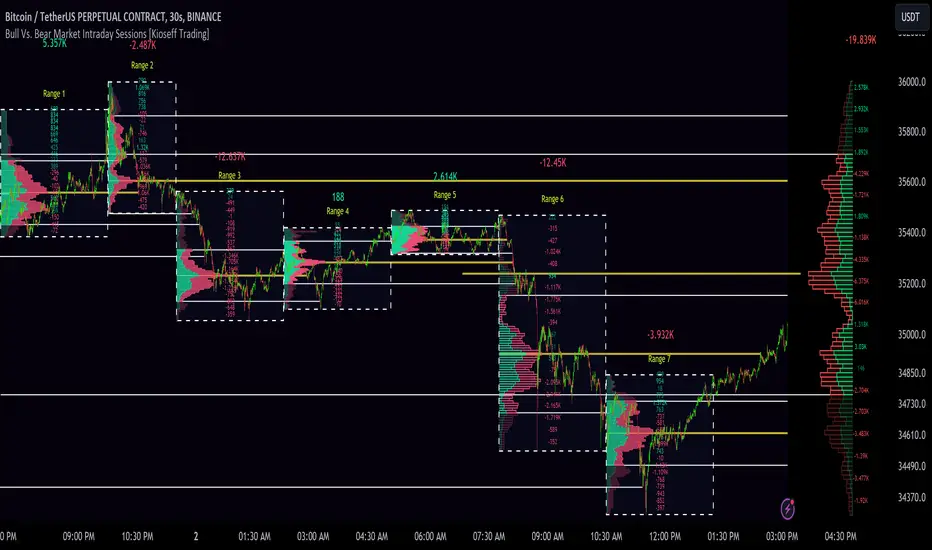
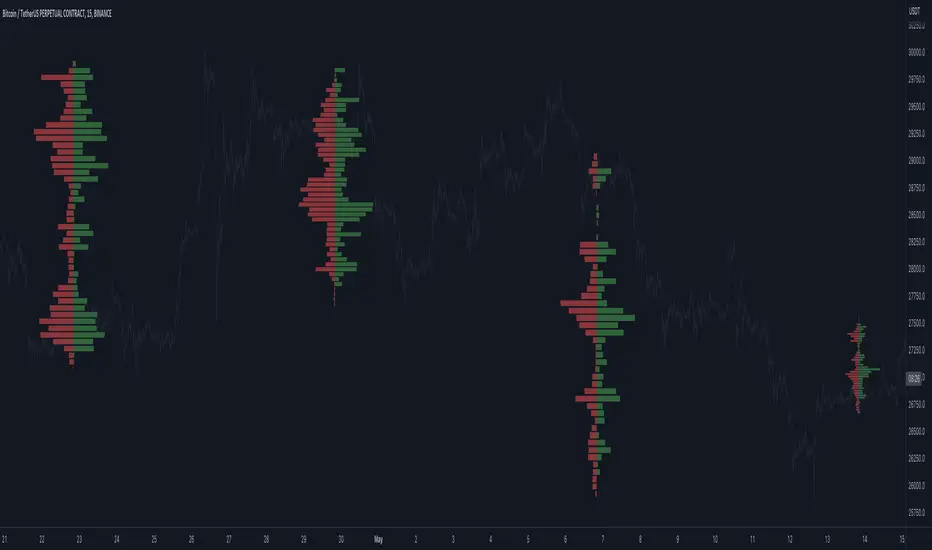
10x Bull Vs. Bear VP Intraday Sessions [Kioseff Trading]Hello!
This script "10x Bull Vs. Bear VP Intraday Sessions" lets the user configure up to 10 session ranges for Bull Vs. Bear volume profiles!
Features
Up To 10 Fixed Ranges!
Volume Profile Anchored to Fixed Range
Delta Ladder Anchored to Range
Bull vs Bear Profiles!
Standard Poc and Value Area Lines, in Addition to Separated POCs and Value Area Lines for Bull Profiles and Bear Profiles
Configurable Value Area Target
Up to 2000 Profile Rows per Visible Range
Stylistic Options for Profiles
This script generates Bull vs. Bear volume profiles for up to 10 fixed ranges!
Up to 2000 volume profile levels (price levels) Can be calculated for each profile, thanks to the new polyline feature, allowing for less aggregation / more precision of volume at price and volume delta.
Bull vs Bear Profiles
The image above shows primary functionality!
Green profiles = buying volume
Red profiles = selling volume
All colors are configurable.
Bullish & bearish POC + value areas for each fixed range are displayable!
That’s about it :D
This indicator is part of a series titled “Bull vs. Bear”.
If you have any suggestions please feel free to share!

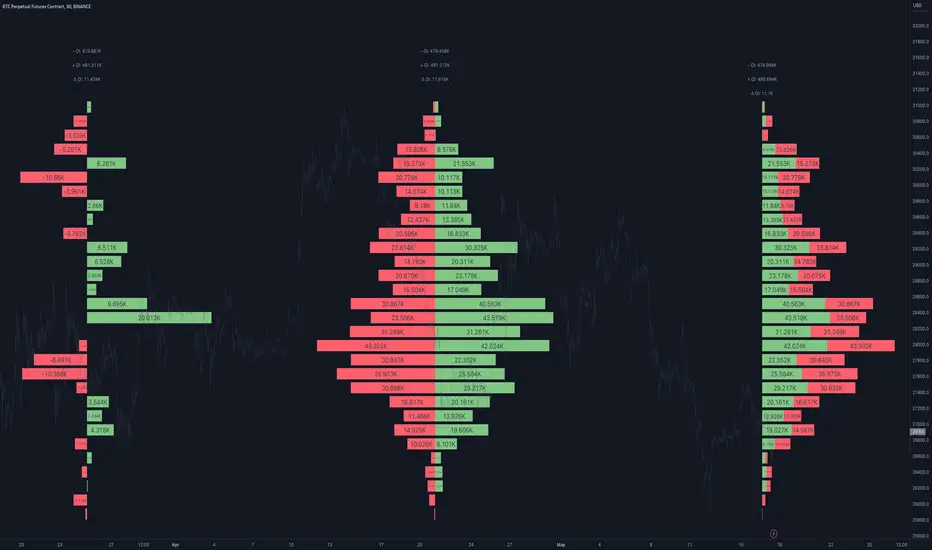
Open Interest Profile [Fixed Range] - By LeviathanThis script generates an aggregated Open Interest profile for any user-selected range and provides several other features and tools, such as OI Delta Profile, Positive Delta Levels, OI Heatmap, Range Levels, OIWAP, POC and much more.
The indicator will help you find levels of interest based on where other market participants are opening and closing their positions. This provides a deeper insight into market activity and serves as a foundation for various different trading strategies (trapped traders, supply and demand, support and resistance, liquidity gaps, imbalances,liquidation levels, etc). Additionally, this indicator can be used in conjunction with other tools such as Volume Profile.
Open Interest (OI) is a key metric in derivatives markets that refers to the total number of unsettled or open contracts. A contract is a mutual agreement between two parties to buy or sell an underlying asset at a predetermined price. Each contract consists of a long side and a short side, with one party consenting to buy (long) and the other agreeing to sell (short). The party holding the long position will profit from an increase in the asset's price, while the one holding the short position will profit from the price decline. Every long position opened requires a corresponding short position by another market participant, and vice versa. Although there might be an imbalance in the number of accounts or traders holding long and short contracts, the net value of positions held on each side remains balanced at a 1:1 ratio. For instance, an Open Interest of 100 BTC implies that there are currently 100 BTC worth of longs and 100 BTC worth of shorts open in the market. There might be more traders on one side holding smaller positions, and fewer on the other side with larger positions, but the net value of positions on both sides is equivalent - 100 BTC in longs and 100 BTC in shorts (1:1). Consider a scenario where a trader decides to open a long position for 1 BTC at a price of $30k. For this long order to be executed, a counterparty must take the opposite side of the contract by placing a short order for 1 BTC at the same price of $30k. When both long and short orders are matched and executed, the Open Interest increases by 1 BTC, indicating the introduction of this new contract to the market.
The meaning of fluctuations in Open Interest:
- OI Increase - signifies new positions entering the market (both longs and shorts).
- OI Decrease - indicates positions exiting the market (both longs and shorts).
- OI Flat - represents no change in open positions due to low activity or a large number of contract transfers (contracts changing hands instead of being closed).
Typically, we monitor Open Interest in the form of its running value, either on a chart or through OI Delta histograms that depict the net change in OI for each price bar. This indicator enhances Open Interest analysis by illustrating the distribution of changes in OI on the price axis rather than the time axis (akin to Volume Profiles). While Volume Profile displays the volume that occurred at a given price level, the Open Interest Profile offers insight into where traders were opening and closing their positions.
How to use the indicator?
1. Add the script to your chart
2. A prompt will appear, asking you to select the “Start Time” (start of the range) and the “End Time” (end of the range) by clicking anywhere on your chart.
3. Within a few seconds, a profile will be generated. If you wish to alter the selected range, you can drag the "Start Time" and "End Time" markers accordingly.
4. Enjoy the script and feel free to explore all the settings.
To learn more about each input in indicator settings, please read the provided tooltips. These can be accessed by hovering over or clicking on the ( i ) symbol next to the input.
Open Interest Profile (OI)- By LeviathanThis script implements the concept of Open Interest Profile, which can help you analyze the activity of traders and identify the price levels where they are opening/closing their positions. This data can serve as a confluence for finding the areas of support and resistance , targets and placing stop losses. OI profiles can be viewed in the ranges of days, weeks, months, Tokyo sessions, London sessions and New York sessions.
A short introduction to Open Interest
Open Interest is a metric that measures the total amount of open derivatives contracts in a specific market at a given time. A valid contract is formed by both a buyer who opens a long position and a seller who opens a short position. This means that OI represents the total value of all open longs and all open shorts, divided by two. For example, if Open Interest is showing a value of $1B, it means that there is $1B worth of long and $1B worth of short contracts currently open/unsettled in a given market.
OI increasing = new long and short contracts are entering the market
OI decreasing = long and short contracts are exiting the market
OI unchanged = the net amount of positions remains the same (no new entries/exits or just a transfer of contracts occurring)
About this indicator
*This script is basically a modified version of my previous "Market Sessions and Volume Profile by @LeviathanCapital" indicator but this time, profiles are generated from Tradingview Open Interest data instead of volume (+ some other changes).
The usual representation of OI shows Open Interest value and its change based on time (for a particular day, time frame or each given candle). This indicator takes the data and plots it in a way where you can see the OI activity (change in OI) based on price levels. To put it simply, instead of observing WHEN (time) positions are entering/exiting the market, you can now see WHERE (price) positions are entering/exiting the market. This is the same concept as when it comes to Volume and Volume profile and therefore, similar strategies and ways of understanding the given data can be applied here. You can even combine the two to gain an edge (eg. high OI increase + Volume Profile showing dominant market selling = possible aggressive shorts taking place)
Green nodes = OI increase
Red nodes = OI decrease
A cluster of large green nodes can be used for support and resistance levels (*trapped traders theory) or targets (lots of liquidations and stop losses above/below), OI Profile gaps can present an objective for the price to fill them (liquidity gaps, imbalances, inefficiencies, etc), and more.
Indicator settings
1. Session/Lookback - Choose the range from where the OI Profile will be generated
2. OI Profile Mode - Mode 1 (shows only OI increase), Mode 2 (shows both OI increase and decrease), Mode 3 (shows OI decrease on left side and OI increase on the right side).
3. Show OI Value Area - Shows the area where most OI activity took place (useful as a range or S/R level )
4. Show Session Box - Shows the box around chosen sessions/lookback
5. Show Profile - Show/hide OI Profile
6. Show Current Session - Show/hide the ongoing session
7. Show Session Labels - Show/hide the text labels for each session
8. Resolution - The higher the value, the more refined a profile is, but fewer profiles are shown on the chart
9. OI Value Area % - Choose the percentage of VA (same as in Volume Profile's VA)
10. Smooth OI Data - Useful for assets that have very large spikes in OI over large bars, helps create better profiles
11. OI Increase - Pick the color of OI increase nodes in the profile
12. OI Decrease - Pick the color of OI decrease nodes in the profile
13. Value Area Box - Pick the color of the Value Area Box
14. Session Box Thickness - Pick the thickness of the lines surrounding the chosen sessions
Advice
The indicator calculates the profile based on candles - the more candles you can show, the better profile will be formed. This means that it's best to view most sessions on timeframes like 15min or lower. The only exception is the Monthly profile, where timeframes above 15min should be used. Just take a few minutes and switch between timeframes and sessions and you will figure out the optimal settings.
This is the first version of Open Interest Profile script so please understand that it will be improved in future updates.
Thank you for your support.
** Some profile generation elements are inspired by @LonesomeTheBlue's volume profile script
Orderflow GapThis is the **Orderflow Gap (OG)** analyzer.
It goes beyond standard price gap detection by integrating
**Market Structure (Dow/SMC)** and **Intra-Bar Orderflow**
to classify the quality and intent behind price discontinuities.
Key Features:
1. **Advanced Gap Detection & Lifecycle:**
- **Flexible Definition:** Users can define gaps based on
market psychology:
- **Body (Open-Close):** Focuses on the "True Gap" between
sessions or candles, ignoring wicks.
- **Full (High-Low):** Focuses on total price dislocation
where no trading occurred at all.
- **Lifecycle Tracking:** The indicator persistently tracks
open gaps and visually marks them as **Filled** once price
mitigates the area by a user-defined percentage.
2. **Intra-Bar Orderflow Profiling (Pre & Post Analysis):**
- **Context:** Standard tools treat a gap merely as empty price space.
This indicator analyzes the **Micro-Auction** immediately surrounding
the event to understand the mechanics of the move.
- **Reconstruction:** Using high-resolution lower timeframe data, it
builds detailed Volume Profiles for the **Pre-Gap Candle** (The Origin)
and the **Post-Gap Candle** (The Reaction).
- **Flow Validation:** This allows the user to verify **Orderflow Continuity**:
Does the aggressive buying/selling that caused the gap continue
immediately after, or is the move fading into absorption?
3. **Statistical Volume Profile Engine:** For each bar in the anchored
period, the indicator builds a complete volume profile on a lower
'Intra-Bar Timeframe'. Instead of simple tick counting, it uses
**statistical models ('PDF' allocation)** to distribute volume
across price levels and **advanced classifiers ('Dynamic' split)**
to determine the buy/sell pressure within that profile.
4. **Structural & Volumetric Context:**
- **Vacuum (Density):** Calculates the "Volume Density" per
tick. A low density indicates a **Liquidity Vacuum** (price
slipped due to lack of orders), while high density indicates
aggressive fighting.
- **Commitment:** Compares the volume surrounding the gap
to the historical average to determine if big players
are backing the move.
- **Trend Alignment:** Filters signals based on the underlying
trend using either **Dow Theory** or **Smart Money Concepts**.
5. **Gap Classification Engine:**
The indicator automatically classifies gaps into four
structural types based on the metrics above:
- **Breakaway:** A high-conviction move that breaks structure,
showing **Initiative** (breaking previous Value Area) and
**Commitment** (High Volume).
- **Runaway:** A continuation gap within an established trend,
aligned with the Orderflow Delta.
- **Exhaustion:** A gap that occurs late in a trend, often
characterized by a **Liquidity Vacuum** (low density) despite
high volume, signaling potential reversal.
- **Common:** Standard volatility gaps lacking significant structural
or volumetric backing.
**Volume Fallback:** If no volume data is provided by the
exchange (e.g., certain CFDs or Indices), the classification
logic automatically defaults to **Common** to ensure strict
signal integrity without Orderflow verification.
6. **Visual Orderflow Insight:**
- **Profile Visualization:** Plots the reconstructed volume
profile as a polyline directly adjacent to the gap, allowing
you to see the "Injection" of volume that caused the move.
- **Color Coding:** Gaps are color-coded based on their
classification (Breakaway/Runaway/Exhaustion) and direction
(Bullish/Bearish).
7. **Multi-Metric Profiling (Volume, Time, Velocity):** Unlike standard
tools, this indicator allows you to switch between three critical
dimensions of market activity:
- **VOLUME (The "Where"):** Shows standard acceptance levels.
- **TIME (The "How Long"):** Measures duration at price (similar to TPO),
indicating fair value (High Time) or rejection (Low Time).
- **VELOCITY (The "How Fast"):** Measures the speed of trading (Contracts
per Second) to reveal intent. **High Velocity** suggests aggression
(initiative buying/selling), while **Low Velocity** despite volume
indicates absorption (passive limit orders).
8. **Integrated Alerts:** Includes granular alerts for:
- Detection of specific gap types (e.g., "Bullish Breakaway Gap").
- General gap formation.
**Caution: Real-Time Data Behavior (Intra-Bar Repainting)**
This indicator uses high-resolution intra-bar data. As a result, the
values on the **current, unclosed bar** (the real-time bar) will
update dynamically as new intra-bar data arrives. This includes
the values used for real-time alerts in 'Structure' and
'Delta' modes.
---
**DISCLAIMER**
1. **For Informational/Educational Use Only:** This indicator is
provided for informational and educational purposes only. It does
not constitute financial, investment, or trading advice, nor is
it a recommendation to buy or sell any asset.
2. **Use at Your Own Risk:** All trading decisions you make based on
the information or signals generated by this indicator are made
solely at your own risk.
3. **No Guarantee of Performance:** Past performance is not an
indicator of future results. The author makes no guarantee
regarding the accuracy of the signals or future profitability.
4. **No Liability:** The author shall not be held liable for any
financial losses or damages incurred directly or indirectly from
the use of this indicator.
5. **Signals Are Not Recommendations:** The alerts and visual signals
(e.g., crossovers) generated by this tool are not direct
recommendations to buy or sell. They are technical observations
for your own analysis and consideration.

Cantillon Institutional Volume Suite [Pro] v9 - Platinum 📘 The Cantillon Platinum HandbookInstitutional Volume Suite 1.
Welcome to the Platinum Edition.
Most indicators on TradingView are "derivatives of price" (RSI, MACD, Moving Averages).
They are lagging; they tell you what has happened.
The Cantillon Suite is different. It is an Order Flow Engine. It visualizes the raw data that moves the market: Volume, Delta, and Liquidity. It is designed to answer one question: "Are the Institutions buying or selling right now?"
2. The Visual Legend (Cheat Sheet) What am I looking at?
Visual Element Color What it Means
The ActionGold Candle 🟡GoldBullish Absorption (Bear Trap). Price dropped (Red candle), but aggressive buying volume absorbed the sellers.
Look for LONGS
Purple Candle 🟣PurpleBearish Absorption (Bull Trap). Price rallied (Green candle), but aggressive selling volume absorbed the buyers.Look for SHORTS
Red Line 🔴Red POC (Point of Control). The exact price level with the highest volume in the trend.Magnet / Support
Purple Line 🟣PurpleAnchored VWAP. The institutional trend line anchored to the start of the swing.
Trend Defense Grey Box ⬜GreyValue Area (70%). The zone where 70% of trading occurred.
Fair Value Zone
Blue Histogram 🔵BlueVolume Profile. The histogram bars on the Left showing volume distribution.
Structure Dashed Lines Grey PDH / PDL. Previous Day High & Previous Day Low.Liquidity Target
Red "x" ❌RedLiquidity Sweep (High). A fake-out above a recent high.Bearish SignalGreen "x" ✅GreenLiquidity Sweep (Low). A fake-out below a recent low.Bullish Signal
3. The Core Modules
🏛️ Module A: Order Flow Coloring (The Trap Detector)Standard red/green candles can be misleading. A red candle might actually be bullish if whales are "absorbing" the panic selling.
Gold Bar 🟡 (The Bear Trap): This appears when a candle is RED (Price went down), but the Net Delta is POSITIVE (More volume was bought than sold).Translation: "Retail is panic selling, but Banks are passively buying everything.
"Purple Bar 🟣 (The Bull Trap): This appears when a candle is GREEN (Price went up), but the Net Delta is NEGATIVE.Translation: "Retail is FOMO buying, but Banks are passively selling into them."
📊 Module B:
Volume Profile (The Map)The histogram on the Left shows you Volume at Price (not time).
The POC (Red Line): This is the market's "Center of Gravity." Price always wants to return here.
Rule: If price is far away from the Red Line, expect a snap-back.The Value Area (Grey Zone): This is the "Safe Zone."Rule: If price crashes below the Grey Zone and then reclaims it, it is a high-probability trade back to the POC.
📈 Module C: Anchored VWAP (The Trend)Unlike a moving average, this line knows exactly when the trend started (Swing High/Low).
Bull Market: Price holds ABOVE the Purple Line. Use the line as support to buy dips.
Bear Market: Price holds BELOW the Purple Line.
Use the line as resistance to sell rallies.
4. The Strategy PlaybookHow to execute trades like a pro.Setup
#1: The "Golden Pocket" (Trend Continuation)The safest trade. Buying a dip in an uptrend.Context: Price is ABOVE the Purple AVWAP (Bull Trend).The Trigger: Price pulls back and touches the Purple Line.The Confirmation:
You see a Gold Bar 🟡 or a Green "x" (Sweep) right at the line.Execution:
BUY.Stop Loss: Below the recent swing low.Take Profit: The previous high.Setup
#2: The "Liquidity Run" (Reversal)Catching the top or bottom by identifying a "Stop Hunt."Context: Price is ranging or hitting a major level (like the PDH - Previous Day High).The Trigger: Price spikes ABOVE the Dotted Line (PDH) or a recent high.
The Confirmation: A Red "x" appears (Sweep), followed immediately by a Purple Candle 🟣.Execution: SHORT.Stop Loss: Just above the wick of the sweep candle.Take Profit: The POC (Red Line) or PDL (Previous Day Low).
Setup #3: The "Value Reclaim" (Mean Reversion)Trading the failed breakout.Context: The Volume Profile (Grey Box) is clearly visible.The Trigger: Price crashes BELOW the Value Area (VAL).The Confirmation: Price rallies back INSIDE the Grey Box and closes there.Execution: BUY.Stop Loss: Below the breakout low.Take Profit: The POC (Red Line).
5. Settings & Customization You can toggle features on/off to keep your chart clean.
1. Volume Profile: Controls the Blue Histogram on the Left. If the chart feels cluttered, uncheck "Show Volume Profile" but keep "Show POC" on.
2. Trend & AVWAP: Controls the Purple Trend Line. You can now choose the "Source" (High, Low, Close) to fine-tune the anchor.
3. Key Macro Levels: Toggles the PDH/PDL lines. Turn these on for Day Trading, off for Swing Trading.
4. Order Flow Coloring: Toggles the Gold/Purple bars. Keep this ON. It is your biggest edge.
Pro-TipsTimeframes: This tool works best on the 4-Hour (4H) for Direction and 15-Minute (15m) for Entry.Confluence is King: A "Gold Bar" in the middle of nowhere is noise. A "Gold Bar" at the PDL (Previous Day Low) is a sniper entry. Always look for at least two factors aligning (e.g., Level + Color).CPU Warning:
This script processes thousands of data points to calculate the Delta. If it loads slowly, be patient—it is crunching math that standard indicators ignore.

Advanced Market Profile & S/R Zones (Pro)Advanced Market Profile & S/R Zones
This indicator brings professional Auction Market Theory to your chart using a custom rolling Volume Profile algorithm. Unlike standard profiles that remain fixed, this tool dynamically calculates the "Fair Value" of the asset based on your specific lookback period (e.g., the last 100 bars).
It automatically highlights the Point of Control (POC), Value Area (VA), and suggests statistical Discount (Buy) and Premium (Sell) zones.
Key Features
Volume Splitting Algorithm:
Most basic scripts dump the entire volume of a candle into a single price point (the average). This script splits the volume across the candle's entire High-Low range. This results in a much smoother, higher-resolution bell curve that accurately reflects price action, especially on higher timeframes like Monthly charts.
Auto-generated Zones:
Green Zone (Discount): Prices below the Value Area Low (VAL). Statistically "cheap."
Red Zone (Premium): Prices above the Value Area High (VAH). Statistically "expensive."
Real-Time Dashboard:
A built-in panel displays the exact price levels for the POC, VAH, and VAL for precise limit order placement, along with the current Market Trend.
How to Use
For Intraday (Day Trading):
Settings: Set Lookback to 100 - 300.
Strategy: Watch for price to open outside the Value Area. If price breaks back inside the Value Area, target the POC (Red Line).
For Macro (Monthly/Weekly Charts):
Settings: Set Lookback to 12 (1 Year) or 60 (5 Years).
Strategy: Identify multi-year structural support. When a monthly candle enters the Green Discount Zone of a 5-year profile, it is often a high-probability institutional entry point.
Trend Logic
The Dashboard indicates trend based on price location relative to value:
Strong Bullish: Price is accepted ABOVE the Value Area.
Strong Bearish: Price is accepted BELOW the Value Area.
Neutral / In VA: Price is chopping inside the Value Area.
Disclaimer
This is a "Rolling Profile." It calculates the profile based on the current lookback window relative to the latest bar. As new bars form, the lookback window shifts, and the profile updates to reflect the new dataset.

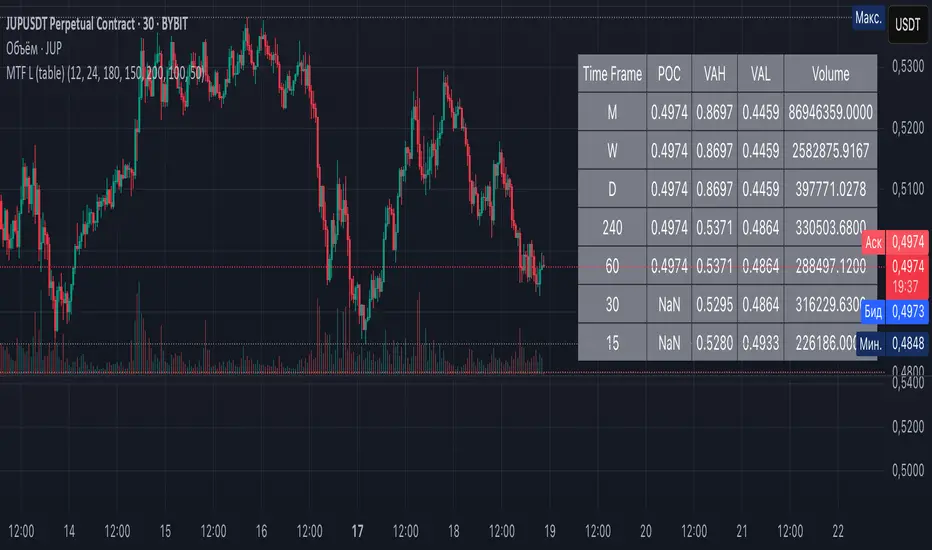
Multi-Timeframe Liquidity Zones V6 (Table)Multi-Timeframe Liquidity Zones V6 (Table) Indicator: Functionality and Uses
Overview: The Multi-Timeframe Liquidity Zones V6 (Table) indicator is a technical analysis tool that highlights key volume-based support and resistance levels across multiple timeframes. It leverages volume profile concepts – specifically the Point of Control (POC) and Value Area High/Low (VAH/VAL) – to identify “liquidity zones” where trading activity was heaviest . Unlike a standard single-timeframe volume profile, this indicator compiles data from several timeframes (e.g. monthly, weekly, daily, intraday) and displays the results in a convenient table format on the chart. The goal is to give traders a consolidated view of important price levels (derived from volume concentrations) across different horizons, helping them plan trades with a broader market perspective.
Purpose and Functionality of the Indicator
Multi-Timeframe Analysis: The primary objective of this indicator is to simplify multi-timeframe analysis of volume distribution. Rather than manually checking volume profiles on separate charts for each timeframe, the tool automatically calculates the key levels for each selected timeframe and presents them together. This includes higher-level perspectives (like monthly or weekly volume hotspots) alongside shorter-term levels (daily or hourly), ensuring that traders don’t miss significant zones from any timeframe . By offering a broader perspective on support and resistance levels, multi-timeframe tools help improve risk management and signal confirmation , and this indicator is designed to provide that volume-based perspective at a glance.
Table Format Display: Multi-Timeframe Liquidity Zones V6 (Table) specifically presents the information as a table (as opposed to plotting lines on the chart). Each row in the table typically corresponds to a timeframe (for example, Monthly, Weekly, Daily, 4H, 1H, 30M, 15M), and the columns list the calculated POC, VAH, VAL, and possibly the average volume for that timeframe’s look-back period. By structuring the data in a table, traders can quickly read off the exact price levels of these liquidity zones without having to visually trace lines. This format makes it easy to compare levels across timeframes or note where multiple timeframes’ levels cluster near the same price – a sign of especially strong support/resistance. The indicator uses a user-defined number of bars or length of history for each timeframe to calculate these values (so you can adjust how far back it looks to define the volume profile for each period).
Objective: In summary, the functionality is geared toward identifying high-liquidity price zones across multiple time scales and presenting them clearly. These high-liquidity zones often coincide with areas where price reacts (stalls, reverses, or accelerates) because a lot of trading activity (hence, orders and volume) took place there in the past. The indicator’s objective is to alert the trader to those areas in advance. It effectively answers questions like: “Where are the major volume concentration levels on the 1-hour, daily, and weekly charts right now?” and “Are there overlapping volume-based support/resistance levels from different timeframes around the current price?” By compiling this information, the indicator helps traders incorporate context from multiple timeframes in their decision-making, without needing to flip through numerous charts.
Identifying Liquidity Zones with POC, VAH, and VAL
Liquidity Zones Defined: In market terms, a “liquidity zone” is an area of the chart where a significant amount of trading occurred, meaning high liquidity (many buyers and sellers exchanged volume there). These zones often act as support or resistance because past heavy trading indicates consensus or interest around those price levels. This indicator identifies liquidity zones through volume profile analysis on each timeframe’s recent price action. Essentially, it looks at the distribution of trading volume at different prices over the specified period and finds the value area – the range of prices that encompassed the majority of that volume (commonly around 70% of the total volume ). Within that value area, it pinpoints the Point of Control (POC), which is the single price level that had the highest traded volume (the peak of the volume profile) . The upper and lower boundaries of that high-volume range are marked as Value Area High (VAH) and Value Area Low (VAL) respectively . Together, the VAH and VAL define the liquidity zone where the market spent most of its time and volume, and POC highlights the most traded price in that zone.
• Point of Control (POC): The POC is the price level with the greatest volume traded for the given period. It represents the price at which the most liquidity was exchanged – effectively the market’s “center of gravity” for that timeframe’s trading activity . The indicator calculates the POC for each selected timeframe by scanning the volume at each price; the price with maximum volume is flagged as that timeframe’s POC. In the table, the POC might be highlighted or listed as a key level (sometimes traders color-code it or mark it for emphasis). Because so many positions were opened or closed at the POC, it often serves as a strong support/resistance. For example, if price falls to a major POC from above, traders expect buyers may step in there (since it was a popular buy/sell level historically), potentially causing a bounce. Conversely, if price breaks through a POC decisively, it may signal a significant shift in market acceptance.
• Value Area High (VAH) and Low (VAL): The VAH and VAL are the price boundaries of the value area, which is typically defined to contain about 70% of the total traded volume for the period . In other words, between VAH and VAL is where the “bulk” of trading occurred, and outside this range is where relatively less volume traded. The indicator derives VAH/VAL by accumulating volume from the highest-volume price (POC) outward until ~70% of volume is covered (this is a common method for volume profile value area). VAH is the top of this high-volume region and VAL is the bottom. These levels are important because they often act like support/resistance boundaries: when price is inside the value area, it’s in a high-liquidity zone and tends to oscillate between VAH and VAL; when price moves above VAH or below VAL, it’s leaving the high-volume zone, which can indicate a potential trend or imbalance (price entering a lower-liquidity area where it might move faster until finding the next liquidity zone). Traders watch VAH/VAL for signs of rejection or acceptance: for instance, a price rally that falters at VAH suggests that level is acting as resistance (sellers defending that high-volume area), whereas if price pushes above VAH, it may continue until the next timeframe’s zone or until it finds new interest. The Multi-Timeframe Liquidity Zones V6 indicator gives the VAH and VAL for each timeframe, essentially mapping out the upper and lower bounds of key liquidity zones at those scales.
How the Indicator Identifies These: Under the hood, the indicator likely uses historical price and volume data for each timeframe’s lookback window. For each timeframe (say the last 20 weekly bars for a weekly profile, last 100 daily bars for a daily profile, etc.), it constructs a volume profile (a histogram of volume at each price). From that distribution, it finds the POC (highest volume bin) and calculates VAH/VAL around it. The output is a set of numbers (price levels) that mark where those zones lie. In practice, if using the Lines version of this indicator, those levels are drawn as horizontal lines on the chart and labeled by timeframe (e.g., a line at 1.2345 labeled “D POC” for Daily POC) . In the Table version, those values are instead listed in text form. Either way, the identification process is the same – it’s finding the high-volume price regions on each timeframe and calling them out. By doing this for multiple timeframes concurrently, the indicator reveals how these liquidity zones from different periods relate to each other. For example, you might discover that a daily-chart value area overlaps with a weekly-chart POC, creating a particularly strong zone of interest. This kind of insight is hard to get from a single timeframe analysis alone.
Volume Profile Data Across Multiple Timeframes
Multiple Timeframes in One View: One of the biggest advantages of this indicator is the ability to see volume profile information from various timeframes side by side. Traders often perform multiple timeframe analysis to get a fuller picture — for instance, checking monthly or weekly levels for long-term context while planning a trade on a 4-hour chart. This indicator automates that process for volume-based levels. The table will typically list each chosen timeframe (which could be preset or user-selected). For each timeframe, you get the POC, VAH, VAL, and possibly an average volume metric. The “average volume” likely refers to the average volume per bar or the average volume traded over the profile’s duration for that timeframe, which gives a sense of how significant that period’s activity is. For example, a weekly profile might show an average volume of say 500k per week, versus a daily profile average of 80k per day – indicating the scale of trading on weekly vs daily. High average volume on a timeframe means its liquidity zones were formed with a lot of participation, possibly making them more reliable support/resistance. By comparing these, traders can gauge which timeframes had unusually high or low activity recently. The table format makes such comparisons straightforward.
Identification of Confluence: Because all the data is presented together, traders can quickly spot confluence or overlaps between timeframes. If two different timeframes show liquidity zones at similar price levels, that price becomes extremely noteworthy. For instance, suppose the indicator shows: a 1-hour POC at 1.1300, a 4-hour VAL at 1.1280, and a daily VAL at 1.1290. These are all in a tight range – effectively indicating a multi-timeframe liquidity zone around 1.1280–1.1300. A trader seeing this cluster in the table will recognize that as a strong support area, since multiple profiles from intraday to daily all suggest heavy trading interest there. Similarly, overlaps of VAH (resistance zone) from different timeframes could signal a strong ceiling. The multi-timeframe view prevents a trader from, say, going long into a major weekly POC above, or shorting when there’s a huge monthly value-area low just below – situations where awareness of higher timeframe volume structure can make the difference between a good and bad trade.
User Customization: The indicator is flexible in that you can typically adjust which timeframes to include and how many bars to use for each timeframe’s calculation. For example, one might configure it to calculate monthly levels using the past 12 monthly bars (1 year of data), weekly levels using the past 20 weeks, daily using 100 days, etc., depending on preference. By tuning the “bars count” or period length , the trader can focus on recent liquidity zones or incorporate more history if desired. Shorter lookback might catch more recent shifts in volume distribution (important if the market structure changed recently), while longer lookback gives more established levels. This customization ensures the indicator’s output can be tailored to different trading styles (short-term vs swing vs long-term investing). Regardless of settings, the multi-timeframe table allows simultaneous visibility of the chosen timeframes’ volume landscape. This comprehensive view is the core strength: it consolidates data that normally requires flipping through multiple charts.
Using the Liquidity Zones Data for Trading Decisions
Traders can use the information from the MTF Liquidity Zones V6 (Table) indicator in several practical ways to enhance their decision-making:
• Identify Support and Resistance: Each liquidity zone acts as a potential support or resistance area. For example, if the table shows a daily VAH at a certain level above the current price, that level might serve as resistance if the price rallies up to it (since it marks the top of a high-volume region where sellers might step in). Conversely, a weekly VAL below current price could act as support on a dip. By noting these levels in the table, a trader planning an entry or exit can anticipate where the price might stall or reverse. Essentially, you get a map of high-interest price levels from different timeframes, which you can mark on your trading chart for guidance.
• Plan Entries and Exits Around Key Levels: Many traders incorporate volume profile levels into their strategies, for instance: buying near VAL (betting that the value area will hold and price will revert upward), or selling/shorting near VAH (expecting the top of value to hold as resistance), or trading breakouts when price moves outside the value area. With the multi-timeframe table, one can refine these tactics by also considering higher timeframe levels. Suppose you see that on the 1-hour chart the price is just above its 1H POC, but the table indicates that just slightly above, there’s also the daily POC. You might delay a long entry until price clears that daily POC, because that could be a stronger intraday barrier. Or if you intend to take profit on a long trade, you might choose a target just below a weekly VAH since price may struggle to climb past that on the first attempt. The indicator thus acts as a guide for precision in entry/exit decisions, aligning them with where liquidity is high.
• Gauge Trend Strength and Directional Bias: By observing where current price is relative to these volume zones, traders can infer certain market conditions. For instance, if price is trading above the VAH of multiple timeframes’ value areas, it suggests the market is in a more bullish or overextended territory (price accepted above prior value), whereas if price is below multiple VALs, it’s in bearish or undervalued territory relative to recent history. If the price stays around a POC, it indicates consolidation or equilibrium (market comfortable at that price). Traders can use this context for bias – e.g., if price is above the weekly VAH, you might lean bullish but watch for potential pullbacks to that VAH level (now a support). If price is below the monthly VAL, you might avoid longs until it re-enters that value area. In essence, the liquidity zones provide context of value vs. price: is price trading within the high-volume areas (implying range-bound behavior) or outside them (implying a breakout or trending move)? This can prevent chasing trades at poor locations.
• Combine with Other Indicators/Analysis: It’s generally advised to not use any single indicator in isolation, and this holds true here. The liquidity zones from this indicator are best used alongside price action or other technical signals for confirmation . For example, if a bullish candlestick reversal pattern forms right at a confluence of a 4H VAL and Daily POC, that’s a stronger buy signal than the pattern alone. Or if an oscillator shows overbought exactly as price hits a weekly VAH, it adds conviction to a possible short. The indicator’s table basically gives you a shortlist of critical price levels; you can then watch how price behaves at those levels (via candlesticks, order flow, etc.) to make the final trade decision. Traders might set alerts for when price approaches one of the listed levels, or they might drop down to a lower timeframe to fine-tune an entry once a key zone is reached. By integrating this volume-based insight with trend analysis, chart patterns, or momentum indicators, one can make more informed and high-probability decisions rather than trading in the dark.
• Risk Management and Stop Placement: High-liquidity zones can also inform stop-loss placement. Ideally, you want your stop on the other side of a strong support/resistance. If you go long near a VAL, you might place your stop just below the VAL (since a move beyond that suggests the high-volume zone didn’t hold). If you short near a VAH, a stop just above the VAH or POC could be logical. Moreover, if multiple timeframes show overlapping zones, a stop beyond all of them could be even safer (albeit at the cost of a wider stop). The indicator helps identify those spots. It also warns you of where not to put a stop – for example, placing a stop-loss right at a POC might be unwise because price could gravitate to that POC repeatedly (due to its magnetic effect as a high-volume price). Instead, a trader might choose a stop beyond the far side of the value area. By using the table’s information, you can align your risk management with areas of high liquidity, reducing the chance of being whipsawed by normal volatility around heavily traded levels .
Benefits of the Multi-Timeframe Liquidity Zones Indicator
Using the Multi-Timeframe Liquidity Zones V6 (Table) indicator offers several key benefits for traders, ultimately aiming to streamline analysis and improve decision quality:
• Consolidated Key Levels: It provides a clear, consolidated view of crucial volume-driven levels from multiple timeframes all at once . This saves time and ensures you always account for major support/resistance zones that come from higher or lower timeframe volume clusters. You won’t accidentally overlook a significant weekly level while focused on a 15-minute chart, for example.
• Enhanced Multi-Timeframe Insight: By aligning information from long-term and short-term periods, the indicator helps traders see the “bigger picture” while still operating on their preferred timeframe. This multi-scale awareness can improve trade timing and confidence. You’re effectively doing multi-timeframe analysis with volume profiles in an efficient manner, which can confirm or caution your trade ideas (e.g., a trend looks strong on the 1H, but the table shows a huge monthly VAH just overhead – a reason to be cautious or take profit early).
• Improved Decision Making and Precision: Knowing where liquidity zones lie allows for more precise entries, exits, and stop placements. Traders can make informed decisions such as waiting for a pullback to a value area before entering, or taking profits before price hits a major POC from a higher timeframe. These decisions are grounded in objectively important price levels, potentially leading to higher probability trades and better risk-reward setups. It essentially enhances your strategy by adding a layer of volume context – you’re trading with an awareness of where the market’s interest is heaviest.
• Volume-Based Confirmation: Price alone can sometimes be deceptive, but volume tells the true story of participation. The liquidity zones indicator provides volume-based confirmation of support/resistance. If a price level is identified by this tool, it’s because significant volume happened there – adding weight to that level’s importance. This can help filter out false support/resistance levels that aren’t backed by volume. In other words, it highlights high-quality levels that many traders (and possibly institutions) have shown interest in.
• Adaptable to Different Trading Styles: Whether one is a scalper looking at intraday (15M, 5M charts) or a swing trader focusing on daily/weekly, the indicator can be configured to those needs. You choose which timeframes and how much data to consider. This means the concept of liquidity zones can be applied universally – from spotting intraday pivot levels with volume, to seeing long-term value zones on an investment. The consistent methodology of POC/VAH/VAL across scales provides a common framework to analyze any market and timeframe.
• Informed Risk Management: As discussed, the knowledge of multi-timeframe volume zones aids in risk management. By placing stops beyond major liquidity areas or avoiding trades that run into strong volume walls, traders can reduce the likelihood of whipsaw losses. It’s an extra layer of defense to ensure your trade plan accounts for where the market has historically found lots of interest (hence likely friction). This level of informed planning can be the difference between a well-managed trade and an avoidable loss.
In conclusion, the Multi-Timeframe Liquidity Zones V6 (Table) indicator serves as a powerful analytical aid, giving traders a structured view of where price is likely to encounter support or resistance based on volume concentrations across timeframes. Its functionality centers on identifying those liquidity zones (via POC, VAH, VAL) and presenting them in an easy-to-read format, while its ultimate purpose is to help traders make more informed decisions. By integrating this tool into their workflow, traders can more confidently navigate price action, knowing the objective volume-based landmarks that lie ahead. Remember that while these volume levels often coincide with strong S/R zones, it’s best to use them in conjunction with other technical or fundamental analysis for confirmation . When used appropriately, the indicator can streamline multi-timeframe analysis and enhance your overall trading strategy , giving you an edge in identifying where the market’s liquidity (and opportunity) resides.
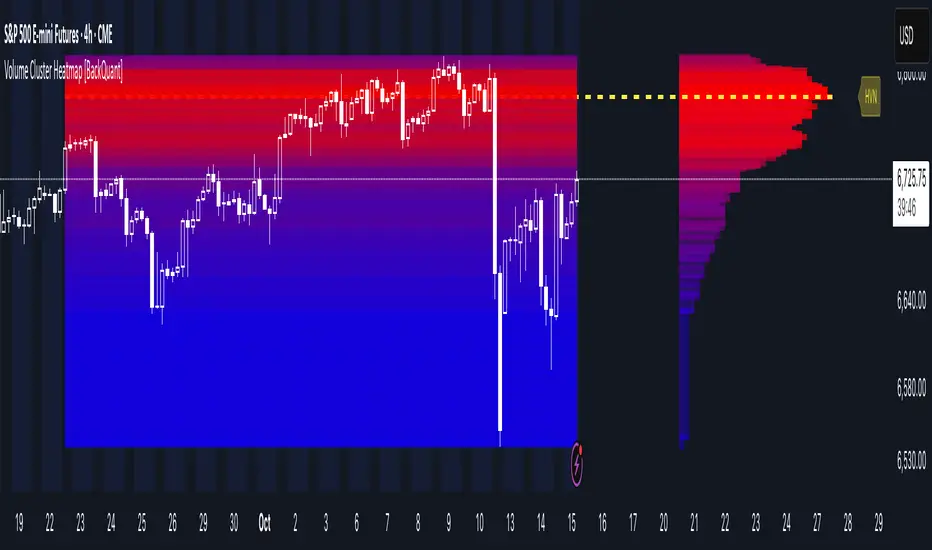
Precision Market Entropy Heatmap [LuxAlgo]The Precision Market Entropy Heatmap indicator provides a high-resolution visualization of volume distribution and market activity within specific anchor intervals using intrabar data.
By utilizing lower timeframe (LTF) precision, it maps out where the most significant trading activity occurred, allowing traders to identify institutional interest zones and "fair value" areas through a dynamic heat-mapped profile.
🔶 USAGE
The indicator segments the chart into blocks based on the selected Anchor Interval. Within each block, a vertical distribution of volume is calculated using the Intrabar Precision setting to ensure the heatmap accurately reflects market participation at specific price levels.
Heatmap Blocks : Brighter colors represent higher volume concentrations (high entropy). These areas often act as significant support or resistance zones where the market has previously found "fair value" or high liquidity.
Identifying Institutional Interest : High-volume "bright" nodes represent price levels where heavy institutional participation occurred. These nodes act as powerful magnets or barriers for future price action.
Navigating Liquidity Voids : Darker areas indicate low volume nodes (low entropy). Price often "slips" through these gaps quickly. Traders can use these zones to anticipate fast-moving price action or set targets beyond the void.
Trend Direction via POC : Observe the slope and shifts of the Developing POC polyline. An ascending POC confirms bullish value migration, while a descending one suggests bearish value migration.
Mean Reversion : Significant price deviations from the largest high-volume node, when the POC remains static, can signal that the market is overextended and likely to return to "fair value."
Breakout Validation : Use the blocks to identify compression zones. A breakout is more reliable when the POC shifts into the new range, confirming that the move is backed by volume and accepted by the market.
POC Extensions : Dashed lines extend the session's final POC. These are dynamically colored based on their relationship to the current price: Green if the POC is below the current price (potential support) and Red if above (potential resistance).
🔶 DETAILS
Unlike standard Volume Profiles that look at fixed ranges, this script focuses on "Entropy" by visualizing the density of distribution across a user-defined grid.
By requesting security data from lower timeframes, it provides a much more granular view of price action than what is visible on the current chart timeframe alone.
The indicator uses a gradient-based coloring system to distinguish between low-activity areas and high-volume nodes, making it easier to spot "Liquidity Voids" (darker areas) and "High Volume Nodes" (brighter areas).
🔶 SETTINGS
🔹 Heatmap Settings
Anchor Interval : Sets the timeframe that defines each heatmap block (e.g., "D" for Daily blocks).
Intrabar Precision : Determines the lower timeframe used to calculate the volume distribution. Lower values (like "1m") provide higher precision but are limited by available historical data.
Number of Rows : Controls the vertical price resolution of the heatmap grid. Higher values create a more detailed but computationally heavier profile.
🔹 Style Settings
Heatmap Intensity : A three-color gradient selector that defines the color transition from low to high volume areas.
Heatmap Transparency : Adjusts the visibility of the heatmap blocks on the chart.
POC Extension (Bull/Bear) : Sets the colors for the dashed POC lines based on whether they are currently below (Bull) or above (Bear) the market price.
Show Developing POC : Toggles the visibility of the real-time POC polyline.
Auto : When enabled, the developing POC color automatically syncs with your chart theme's foreground color.
🔹 Display Settings
Max Sessions to Show : Limits the number of historical heatmap blocks rendered on the chart to maintain performance.
Extend POCs to Current Bar : When enabled, historical POC lines will extend to the far right of the chart until they are replaced by newer sessions.

Volume Cluster Heatmap [BackQuant]Volume Cluster Heatmap
A visualization tool that maps traded volume across price levels over a chosen lookback period. It highlights where the market builds balance through heavy participation and where it moves efficiently through low-volume zones. By combining a heatmap, volume profile, and high/low volume node detection, this indicator reveals structural areas of support, resistance, and liquidity that drive price behavior.
What Are Volume Clusters?
A volume cluster is a horizontal aggregation of traded volume at specific price levels, showing where market participants concentrated their buying and selling.
High Volume Nodes (HVN) : Price levels with significant trading activity; often act as support or resistance.
Low Volume Nodes (LVN) : Price levels with little trading activity; price moves quickly through these areas, reflecting low liquidity.
Volume clusters help identify key structural zones, reveal potential reversals, and gauge market efficiency by highlighting where the market is balanced versus areas of thin liquidity.
By creating heatmaps, profiles, and highlighting high and low volume nodes (HVNs and LVNs), it allows traders to see where the market builds balance and where it moves efficiently through thin liquidity zones.
Example: Bitcoin breaking away from the high-volume zone near 118k and moving cleanly through the low-volume pocket around 113k–115k, illustrating how markets seek efficiency:
Core Features
Visual Analysis Components:
Heatmap Display : Displays volume intensity as colored boxes, lines, or a combination for a dynamic view of market participation.
Volume Profile Overlay : Shows cumulative volume per price level along the right-hand side of the chart.
HVN & LVN Labels : Marks high and low volume nodes with color-coded lines and labels.
Customizable Colors & Transparency : Adjust high and low volume colors and minimum transparency for clear differentiation.
Session Reset & Timeframe Control : Dynamically resets clusters at the start of new sessions or chosen timeframes (intraday, daily, weekly).
Alerts
HVN / LVN Alerts : Notify when price reaches a significant high or low volume node.
High Volume Zone Alerts : Trigger when price enters the top X% of cumulative volume, signaling key areas of market interest.
How It Works
Each bar’s volume is distributed proportionally across the horizontal price levels it touches. Over the lookback period, this builds a cumulative volume profile, identifying price levels with the most and least trading activity. The highest cumulative volume levels become HVNs, while the lowest are LVNs. A side volume profile shows aggregated volume per level, and a heatmap overlay visually reinforces market structure.
Applications for Traders
Identify strong support and resistance at HVNs.
Detect areas of low liquidity where price may move quickly (LVNs).
Determine market balance zones where price may consolidate.
Filter noise: because volume clusters aggregate activity into levels, minor fluctuations and irrelevant micro-moves are removed, simplifying analysis and improving strategy development.
Combine with other indicators such as VWAP, Supertrend, or CVD for higher-probability entries and exits.
Use volume clusters to anticipate price reactions to breaking points in thin liquidity zones.
Advanced Display Options
Heatmap Styles : Boxes, lines, or both. Boxes provide a traditional heatmap, lines are better for high granularity data.
Line Mode Example : Simplified line visualization for easier reading at high level counts:
Profile Width & Offset : Adjust spacing and placement of the volume profile for clarity alongside price.
Transparency Control : Lower transparency for more opaque visualization of high-volume zones.
Best Practices for Usage
Reduce the number of levels when using line mode to avoid clutter.
Use HVN and LVN markers in conjunction with volume profiles to plan entries and exits.
Apply session resets to monitor intraday vs. multi-day volume accumulation.
Combine with other technical indicators to confirm high-probability trading signals.
Watch price interactions with LVNs for potential rapid movements and with HVNs for possible support/resistance or reversals.
Technical Notes
Each bar contributes volume proportionally to the price levels it spans, creating a dynamic and accurate representation of traded interest.
Volume profiles are scaled and offset for visual clarity alongside live price.
Alerts are fully integrated for HVN/LVN interaction and high-volume zone entries.
Optimized to handle large lookback windows and numerous price levels efficiently without performance degradation.
This indicator is ideal for understanding market structure, detecting key liquidity areas, and filtering out noise to model price more accurately in high-frequency or algorithmic strategies.
Low Volatility Profiles [BigBeluga]🔵 OVERVIEW
Low Volatility Profiles is a market compression and breakout-anticipation tool that identifies phases of low volatility using ADX and then builds a real-time volume profile inside the detected range.
This helps traders spot accumulation/distribution zones and prepare for explosive moves when volatility expands.
When volatility is low ➜ price coils ➜ volume organizes ➜ breakouts become highly actionable.
This tool visualizes that process with dynamic range boxes + volume bins + PoC extension.
🔵 CONCEPTS
Low-Volatility Detection — Uses ADX threshold & cross logic to define volatility contraction regimes.
Range Construction — Draws a price box that expands with highs/lows during the compression phase.
Micro Volume Profile — Builds a volume histogram inside the range using bins (micro volume nodes).
Delta Calculation — Tracks positive vs negative volume to gauge buyer/seller pressure within range.
Point of Control (PoC) — Highlights the price level with max traded volume inside the range.
PoC Extension — Optionally extends PoC into future bars to show potential reaction zone after breakout.
Breakout Validation — Ends the profile zone when price breaks above or below the modeled range.
Noise Removal — Automatically removes invalid or small ranges to prevent chart clutter.
This tool turns consolidation into actionable structure by exposing where smart money accumulates before trending moves.
🔵 FEATURES
ADX-Driven Range Detection — Identify when market transitions into low-volatility compression.
Configurable ADX Threshold — Set sensitivity for contraction zones.
Cross-Type Option — Detect low volatility via cross under / crossover logic.
Dynamic Range Box — Expands live with price as contraction unfolds.
Micro Volume Profile (Bins) — Distributes volume across bins inside range for micro POC mapping.
Volume Delta Visualization — Shows imbalance inside consolidation (accumulation vs distribution).
Real-Time PoC Highlight — Instantly shows most traded price inside the compression.
PoC Extension Mode — Extend PoC forward to project reaction levels post-breakout.
Clean Auto-Reset Logic — Removes boxes if range invalid or breakout occurs too fast.
Optional Filled Boxes — Heatmap-style profile visualization inside range body.
ADX Line + Threshold Plot — Visual assistance for volatility state monitoring.
🔵 HOW TO USE
Identify Accumulation Zones — When price enters low-volatility ADX condition and profile builds.
Watch the PoC — PoC acts as battle zone; move above/below can signal initiator strength.
Breakout Strategy — Trade break above/below the range after compression.
Mean Reversion Inside Range — Fade edges while price remains inside compression box.
Combine With Trend Tools — Use trend confirmation (MA/EMA/Flow indicators) after breakout.
Use Delta Clues — Positive delta tilt suggests accumulation; negative suggests distribution.
Monitor Range Size — Longer build + high PoC volume = stronger potential breakout energy.
🔵 CONCLUSION
Low Volatility Profiles isolates accumulation phases and maps volume concentration before volatility expansion.
By combining ADX compression, micro volume distribution, and PoC tracing, traders gain an edge in anticipating powerful breakout cycles and institutional positioning.
Trade the quiet moment before the storm — where smart money prepares the move, and the real opportunity emerges.

Real-Time HTF Volume Footprint [BigBeluga]Real-time HTF Volume Footprint Profile is designed to provide a comprehensive view of higher timeframe volume profiles on your current chart. It overlays critical volume information from larger timeframes (like daily, weekly, or monthly) onto lower timeframe charts, helping you spot significant levels where volume is concentrated, acting as potential support or resistance.
🔵 Key Features:
HTF High and Low Zones: The indicator highlights the high and low of the chosen higher timeframe with clear zones, marking them with boxes. These zones help you see the broader market structure at a glance.
Volume Profile within HTF Range: Each higher timeframe range displays a volume profile, showing the distribution of volume at each price level. The most-traded price is highlighted in blue, known as the Point of Control (POC), indicating the price level with the highest activity.
Dynamic POC Option: Activate Dynamic POC to observe how the Point of Control shifts over time, giving insight into changing market interests and potential price direction.
Timeframe Flexibility: Select from daily, weekly, and monthly ranges (and more) to overlay their footprint profiles on your lower timeframe chart. This helps you tailor the indicator to the trading horizon that suits your strategy.
Info Table: Table shows a traders which timeframe is selected with last high and low of the selected timeframe
Visual Clarity with Custom Colors: The indicator uses subtle fills and distinct colors to ensure volume profile data integrates seamlessly into your chart without overwhelming other indicators or price data.
🔵 When to Use:
The HTF Volume Footprint Profile is essential for traders who want to bridge the gap between high-timeframe and intraday analysis. By visualizing HTF volume distribution on lower timeframes, this tool helps you:
Spot potential liquidity zones where price might react.
Identify support and resistance levels within HTF ranges.
Monitor PoC shifts that indicate changes in market behavior.
Track how current price aligns with significant volume clusters, providing a clear edge for volume-based strategies.
This indicator empowers traders to analyze lower timeframes with the context of higher timeframe volume profiles, providing a solid basis for identifying critical support and resistance levels shaped by large volume clusters. Whether you’re looking to spot liquidity zones or align your trades with broader market trends, HTF Volume Footprint Profile equips you with a strategic view.

Open Liquidity Heatmap [BigBeluga]Open Liquidity Heatmap is an indicator designed to display accumulated resting liquidity on the chart.
Unlike any other liquidity heatmap, this aims to accumulate liquidity at specific levels that build up over time, showing larger areas of liquidity.
🔶 FEATURES
The indicator includes the following settings:
Lookback : Used to determine the range calculation of the heatmap.
Leverage : Leverage of the liquidation (Counted as % in price, Example: 4.5 will return a distance from price of 4.5%, indicating any possible resting liquidity in this range).
Levels : Amount of levels to display (Each level is counted as liquidity resting on the chart; fewer levels will return a bigger area of liquidity sitting on the chart).
Mode : Apply a color gradient from the minimum liquidation to the maximum liquidity level. Set the maximum color gradient value (Counted as volume).
Offset : Automatically determine the offset range of the Volume Profiles. Manual offset of the Volume Profiles.
🔶 CALCULATION
for i = 0 to step - 1
float plotter = na
switch i
0 =>
plotter := hs
=>
plotter := hs - diff * ( i )
cls.hm.gnL(plotter)
cls.vp.put(plotter, 0)
We calculate levels like a normal volume profile with steps, from the highest point within the lookback to the lowest one. Each level will contain the corresponding amount of volume that the candle has closed in that range.
As we can see in the image above, we add liquidity each time the distance in % from price is between two levels.
Unlike many liquidity indicators that provide a single candle liquidity heatmap, this aims to add up liquidity (volume) in already present levels.
This can be extremely useful to see which levels are likely to be more liquid and tend to get a bigger reaction to the price.
Imagine it like a range of levels that each time price revisits that area, a new position area is added; we add volume in that area each time price visits that zone. Liquidity builds up in those zones, causing a bigger reaction to the price once the price visits it.
This indicator is not the same as a single candle heatmap like many others. What is a single candle heatmap?
A single candle heatmap is when a level is created on every new candle, coloring the level based on the total volume of it.
This indicator, on the contrary, aims to provide a more specific use by adding up liquidity each time price visits it.
🔶 BASIC DEMOSTRATION
This is a basic demonstration of how we can spot high liquidity points overall using confluence:
We see the POC of the liquidation in a low volume area of the normal volume profile adding up as confluence.
Resistance from the POC Volume Profile suggesting price will go lower.
Major long open liquidity down.
As we can see, price takes out all the long liquidity and right after pumping, indicating that all the major liquidity got taken out.
Some key note to take is that a POC in the liquidation heatmap in a low volume area of the normal Volume Profile add confluence of a possible big reaction in that zone.
In the forex market, we suggest to use a low distance from price (Leverage) while in a crypto market you can use the one that fit the best the current timeframe.
🔶 CONCLUSION
This indicator aims to show open resting liquidity that had built up over time, showing the most amount of liquidation in specific areas in an aggregated way unlike many liquidation heatmap indicators that show single-level liquidation.
🔶 RELATED SCRIPT

Smart VWAP FVG SystemSmart VWAP FVG System - Professional Multi-Filter Trading Indicator
📊 OVERVIEW
The Smart VWAP FVG System is an advanced multi-layered trading indicator that combines institutional volume analysis, multi-timeframe VWAP trend confirmation, and Fair Value Gap detection to identify high-probability trade entries. This indicator uses a sophisticated filtering mechanism where signals appear only when multiple independent confirmation criteria align simultaneously.
Recommended Timeframe: 5-minute (M5) or higher. The indicator works best on M5, M15, and M30 charts for intraday trading.
🎯 ORIGINALITY & PURPOSE
This indicator is original because it combines three distinct analytical methods into a unified decision-making system:
Market Profile Volume Analysis - Identifies institutional accumulation/distribution zones
Dual VWAP Filtering - Confirms trend direction using two independent VWAP calculations
Fair Value Gap Detection - Validates institutional interest through price inefficiency zones
The key innovation is the directional filter system: the primary Market Profile generates BUY-ONLY or SELL-ONLY states based on higher timeframe value area reversals, which then controls which signals from the main system are displayed. This creates a multi-timeframe confluence that significantly reduces false signals.
Unlike simple indicator mashups, each component serves a specific purpose:
Market Profile → Direction bias (trend filter)
Primary VWAP (Session) → Short-term trend confirmation
Secondary VWAP (Week) → Medium-term trend confirmation
FVG Detection → Institutional activity validation
🔧 HOW IT WORKS
1. Primary Market Profile Filter (Higher Timeframe)
The indicator calculates Market Profile on a higher timeframe (default: 1 hour) to determine the overall market structure:
Value Area High (VAH): Top 70% of volume distribution
Value Area Low (VAL): Bottom 70% of volume distribution
Point of Control (POC): Price level with highest volume
When price reaches VAH and reverses down → SELL-ONLY mode activated
When price reaches VAL and reverses up → BUY-ONLY mode activated
This higher timeframe filter ensures you're trading in the direction of institutional flow.
2. Dual VWAP System
Two independent VWAP calculations provide multi-timeframe trend confirmation:
Primary VWAP (Session-based): Resets daily, tracks intraday momentum
Secondary VWAP (Week-based): Resets weekly, confirms longer-term trend
Filter Logic:
BUY signals require: Price > Primary VWAP AND Price > Secondary VWAP
SELL signals require: Price < Primary VWAP AND Price < Secondary VWAP
This dual confirmation prevents counter-trend trades during ranging conditions.
3. Fair Value Gap (FVG) Detection
FVG zones identify price inefficiencies where institutional orders were executed rapidly:
Bullish FVG: Gap between candle .high and candle .low (upward imbalance)
Bearish FVG: Gap between candle .high and candle .low (downward imbalance)
The indicator monitors recent FVG formation (lookback: 50 bars) and requires:
Bullish FVG present for BUY signals
Bearish FVG present for SELL signals
FVG zones are displayed as colored boxes and automatically marked as "mitigated" when price fills the gap.
4. Main Trading Signal Logic
The secondary Market Profile (default: 1 hour) generates the actual trading signals:
BUY Signal Conditions:
Price reaches Value Area Low
Reversal pattern confirmed (minimum 1 bar)
Price > Primary VWAP
Price > Secondary VWAP (if filter enabled)
Recent Bullish FVG detected (if filter enabled)
Primary MP Filter = BUY-ONLY or NEUTRAL
SELL Signal Conditions:
Price reaches Value Area High
Reversal pattern confirmed (minimum 1 bar)
Price < Primary VWAP
Price < Secondary VWAP (if filter enabled)
Recent Bearish FVG detected (if filter enabled)
Primary MP Filter = SELL-ONLY or NEUTRAL
All conditions must be TRUE simultaneously for a signal to appear.
📈 VISUAL ELEMENTS
On Chart:
🟢 Green Triangle (▲) = BUY Signal
🔴 Red Triangle (▼) = SELL Signal
🟦 Blue horizontal lines = Value Area zones
🟡 Yellow line = Point of Control (POC)
🟩 Green boxes = Bullish FVG zones
🟥 Red boxes = Bearish FVG zones
🔵 Blue line = Primary VWAP (Session)
⚪ White line = Secondary VWAP (Week)
Info Panel (Top Right):
Real-time status display showing:
Filter Direction (BUY ONLY / SELL ONLY / NEUTRAL)
Active timeframes for both MP filters
FVG filter status and count
VWAP positions (ABOVE/BELOW)
Signal enablement status
Alert status
⚙️ KEY SETTINGS
MP/TPO Filter Settings (Primary Indicator)
MP Filter Time Frame: 60 minutes (controls directional bias)
Filter Value Area %: 70% (standard Market Profile calculation)
Filter Alert Distance: 1 bar
Filter Min Bars for Reversal: 1 bar
Filter Alert Zone Margin: 0.01 (1%)
FVG Filter Settings
Use FVG Filter: Enabled (toggle on/off)
FVG Timeframe: 60 minutes (1 hour)
FVG Filter Mode: Both (require bullish FVG for BUY, bearish for SELL)
FVG Lookback Period: 50 bars (how far back to search)
Show FVG Formation Signals: Optional visual markers
Max FVG on Chart: 50 zones
Show Mitigated FVG: Display filled gaps
Market Profile Settings
Higher Time Frame: 60 minutes (for main signals)
Percent for Value Area: 70%
Show POC Line: Enabled
Keep Old MPs: Enabled (maintain historical profiles)
Primary VWAP Filter
Use Primary VWAP Filter: Enabled
Primary VWAP Anchor Period: Session (resets daily)
Primary VWAP Source: HLC3 (typical price)
Secondary VWAP Filter
Use Secondary VWAP Filter: Enabled
Secondary VWAP Anchor Period: Week (resets weekly)
Secondary VWAP Filter Mode: Both
Secondary VWAP Line Color: White
Trading Signals
Show Trading Signals on Chart: Enabled
Show SELL Signals: Enabled
Show BUY Signals: Enabled
Alert Distance: 1 bar
Min Bars for Reversal: 1 bar
Alert Zone Margin: 0.01 (1%)
Retest Search Period: 20 bars
Min Bars Between Retests: 5 bars
Show Only Retests: Disabled
Alert Settings
Enable Trading Notifications: Enabled
VAH Reversal Alert: Enabled (SELL signals)
VAL Reversal Alert: Enabled (BUY signals)
Time Filter Settings
Filter Alerts By Time: Optional (exclude specific hours)
⚠️ IMPORTANT WARNINGS & LIMITATIONS
1. Repainting Behavior
CRITICAL: This indicator uses lookahead=barmerge.lookahead_on to access higher timeframe data immediately for FVG detection. This is necessary to provide real-time FVG zone visualization but has the following implications:
FVG zones may shift slightly until the higher timeframe candle closes
FVG detection signals are preliminary until HTF bar confirmation
The main trading signals (triangles) appear on confirmed bars and do not repaint
Best Practice: Always wait for the current timeframe bar to close before acting on signals. The filter status and FVG zones are informational but may adjust as new data arrives.
2. Minimum Timeframe
Do NOT use on timeframes below 5 minutes (M5)
Recommended: M5, M15, M30 for intraday trading
Higher timeframes (H1, H4) can also be used but will generate fewer signals
3. Multiple Filters Can Block Signals
By design, this indicator is conservative. When all filters are enabled:
Signals appear ONLY when all conditions align
You may see extended periods with no signals
This is intentional to reduce false positives
If you see no signals:
Check the Info Panel to see which filters are failing
Consider adjusting FVG lookback period
Temporarily disable FVG filter to test
Verify VWAP filters match current market trend
4. Market Profile Limitations
Market Profile requires sufficient volume data
Low-volume instruments may produce unreliable profiles
Value Areas update only on higher timeframe bar close
Works best on liquid markets (major forex pairs, indices, crypto)
📖 HOW TO USE
Step 1: Add to Chart
Apply indicator to M5 or higher timeframe chart
Ensure chart shows volume data
Use standard candles (NOT Heikin Ashi, Renko, etc.)
Step 2: Configure Settings
Primary MP Filter TF: Set to 60 (1 hour) minimum, or 240 (4 hour) for swing trading
Main MP TF: Set to 60 (1 hour) for intraday signals
FVG Timeframe: Match or exceed main MP timeframe
Leave other settings at default initially
Step 3: Understand the Info Panel
Monitor the top-right panel:
FILTER STATUS: Shows current directional bias
NEUTRAL = Both signals allowed
BUY ONLY = Only green triangles will appear
SELL ONLY = Only red triangles will appear
FVG Filter: Shows if bullish/bearish gaps detected recently
VWAP positions: Confirms trend alignment
Step 4: Take Signals
For BUY Signal (Green Triangle ▲):
Wait for green triangle to appear
Check Info Panel shows ✓ for BUY signals
Confirm current bar has closed
Enter long position
Stop loss: Below recent VAL or swing low
Target: Previous Value Area High or 1.5-2× risk
For SELL Signal (Red Triangle ▼):
Wait for red triangle to appear
Check Info Panel shows ✓ for SELL signals
Confirm current bar has closed
Enter short position
Stop loss: Above recent VAH or swing high
Target: Previous Value Area Low or 1.5-2× risk
Step 5: Risk Management
Risk per trade: Maximum 1-2% of account equity
Position sizing: Adjust based on stop loss distance
Avoid trading: During major news events or time filter periods
Multiple confirmations: Look for confluence with price action (support/resistance, trendlines)
🎓 UNDERLYING CONCEPTS
Market Profile Theory
Developed by J. Peter Steidlmayer in the 1980s, Market Profile organizes price and volume data to identify:
Value Areas: Where 70% of trading activity occurred
POC: Price level with highest acceptance (most volume)
Imbalances: When price moves away from value quickly
This indicator uses TPO (Time Price Opportunity) calculation method to build the volume profile distribution.
VWAP (Volume Weighted Average Price)
VWAP represents the average price weighted by volume, showing where institutional traders are positioned:
Price above VWAP = Bullish (institutions accumulated lower)
Price below VWAP = Bearish (institutions distributed higher)
Using dual VWAP (Session + Week) creates multi-timeframe trend alignment.
Fair Value Gaps (FVG)
Also known as "imbalance" or "inefficiency," FVG occurs when:
Price moves so rapidly that a gap forms in the candlestick structure
Indicates institutional order flow (large market orders)
Price often returns to "fill" these gaps (rebalance)
The 3-candle FVG pattern (gap between candle and candle ) is widely used in ICT (Inner Circle Trader) methodology and Smart Money Concepts.
🔍 CREDITS & CODE ATTRIBUTION
This indicator builds upon established technical analysis concepts and combines multiple methodologies:
1. Market Profile / TPO Calculation
Concept Origin: J. Peter Steidlmayer (Chicago Board of Trade, 1980s)
Code Inspiration: TradingView's public domain Market Profile examples
Modifications: Custom filtering logic for directional bias, dual timeframe implementation
2. VWAP Calculation
Concept Origin: Standard financial instrument (widely used since 1980s)
Code Base: TradingView built-in ta.vwap() function (public domain)
Modifications: Dual VWAP system with independent anchor periods, custom filtering modes
3. Fair Value Gap Detection
Concept Origin: Inner Circle Trader (ICT) / Smart Money Concepts methodology
Code Implementation: Original implementation based on 3-candle gap pattern
Features: Multi-timeframe detection, automatic mitigation tracking, visual zone display
4. Pine Script Framework
Language: Pine Script v6 (TradingView)
Built-in Functions Used:
ta.vwap() - Volume weighted average price
request.security() - Higher timeframe data access
ta.change() - Period detection
ta.cum() - Cumulative volume
time() - Timestamp functions
Note: All code is original implementation. While concepts are based on established trading methodologies, the combination, filtering logic, and execution are unique to this indicator.
📊 RECOMMENDED INSTRUMENTS
Best Performance:
Major Forex Pairs (EURUSD, GBPUSD, USDJPY)
Stock Indices (ES, NQ, SPX, DAX)
Major Cryptocurrencies (BTCUSD, ETHUSD)
Liquid Stocks (high daily volume)
Avoid:
Low-volume altcoins
Illiquid stocks
Exotic forex pairs with wide spreads
⚡ PERFORMANCE TIPS
Start Conservative: Enable all filters initially
Reduce Filters Gradually: If too few signals, disable Secondary VWAP filter first
Match Timeframes: Keep MP Filter TF and FVG TF at same value
Backtest First: Review historical performance on your preferred instrument/timeframe
Combine with Price Action: Look for support/resistance confluence
Use Time Filter: Avoid low-liquidity hours (optional setting)
🚫 WHAT THIS INDICATOR DOES NOT DO
Does not guarantee profits - No trading system is 100% accurate
Does not predict the future - Based on historical patterns
Does not replace risk management - Always use stop losses
Does not work on all instruments - Requires volume data and liquidity
Does not provide exact entry/exit prices - Signals are zones, not precise levels
Does not account for fundamentals - Purely technical analysis
📜 DISCLAIMER
This indicator is provided for educational and informational purposes only. It is not financial advice, and past performance does not guarantee future results.
Trading Risk Warning:
All trading involves risk of loss
You can lose more than your initial investment (leverage products)
Only trade with capital you can afford to lose
Always use appropriate position sizing and risk management
Consider seeking advice from a licensed financial advisor
Technical Limitations:
Indicator may repaint FVG zones until HTF bar closes
Signals are based on historical patterns that may not repeat
Market conditions change and no system works in all environments
Volume data quality varies by exchange/broker
By using this indicator, you acknowledge these risks and agree that the author bears no responsibility for trading losses.
📞 SUPPORT & UPDATES
Questions? Comment on this publication
Issues? Describe the problem with chart screenshot
Feature Requests? Suggest improvements in comments
Updates: Will be published as new versions using TradingView's update feature
📝 VERSION HISTORY
Version 1.0 (Current)
Initial public release
Multi-filter system: MP + Dual VWAP + FVG
Directional bias filter
Real-time info panel
Comprehensive alert system
Time-based filtering
Thank you for using Smart VWAP FVG System!
Happy Trading! 📈

LVN/HVN Auto Detection [PhenLabs]📊 PhenLabs - LVN/HVN Auto Detection
Version: PineScript™ v6
📌 Description
The PhenLabs LVN/HVN Auto Detection indicator is an advanced volume profile analysis tool that automatically identifies Low Volume Nodes (LVN) and High Volume Nodes (HVN) across multiple trading sessions. This sophisticated indicator analyzes volume distribution patterns to pinpoint critical support and resistance levels where price is likely to react, providing traders with high-probability zones for entries, exits, and risk management.
Unlike traditional volume indicators that only show current activity, this tool builds comprehensive volume profiles from historical sessions and intelligently filters the most significant levels. It combines real-time volume analysis with dynamic level detection, offering both visual bubbles for immediate volume activity and persistent horizontal lines that act as ongoing support/resistance references.
🚀 Points of Innovation
Multi-Session Volume Profile Analysis - Automatically calculates and analyzes volume profiles across the last 5 trading sessions
Intelligent Level Separation Logic - Prevents overlapping signals by maintaining minimum separation between LVN and HVN levels
Dynamic Timeframe Adaptation - Automatically adjusts session lengths based on chart timeframe for optimal level detection
Real-Time Activity Bubbles - Shows volume activity strength through different bubble sizes at key levels
Persistent Line Management - Creates horizontal lines that extend until price crosses them, providing ongoing reference points
Dual Threshold System - Independent percentage-based thresholds for both LVN and HVN identification
🔧 Core Components
Volume Profile Engine : Builds 20-row volume profiles for each analyzed session, distributing volume across price levels
Level Identification Algorithm : Uses percentage-based thresholds to classify volume distribution patterns
Separation Logic : Ensures minimum distance between conflicting levels, prioritizing HVN when overlap occurs
Line Management System : Tracks active support/resistance lines and removes them when price crosses through
Volume Activity Monitor : Compares current volume to 13-period moving average for activity classification
🔥 Key Features
Customizable Thresholds : LVN threshold (5-35%, default 20%) and HVN threshold (65-95%, default 80%) for precise level filtering
Volume Activity Multiplier : Adjustable volume threshold (0.5+, default 1.5) for bubble and line creation sensitivity
Flexible Display Modes : Choose between Lines only, Bubbles only, or Both for optimal chart clarity
Smart Level Separation : Minimum separation percentage (0.1-2%, default 0.5%) prevents conflicting signals
Color Customization : Independent color controls for LVN (red) and HVN (blue) elements
Performance Optimization : Processes every 15 bars with maximum 500 active lines for smooth operation
🎨 Visualization
Colored Bubbles : Three sizes (large, medium, small) indicate volume activity strength at key levels
Horizontal Lines : Persistent support/resistance lines with width corresponding to volume activity
Dual Color System : Semi-transparent red for LVN areas, semi-transparent blue for HVN zones
Information Tooltip : Optional table showing usage guidelines and optimization tips
📖 Usage Guidelines
Volume Thresholds
LVN Threshold
○ Default: 20.0%
○ Range: 5.0-35.0%
○ Description: Price levels with volume below this percentage are marked as LVNs. Lower values create fewer, more significant levels. Typical range 15-25% works for most instruments.
HVN Threshold
○ Default: 80.0%
○ Range: 65.0-95.0%
○ Description: Price levels with volume above this percentage are marked as HVNs. Higher values create fewer, stronger levels. Range 75-85% is optimal for most trading.
Display Controls
Volume Threshold
○ Default: 1.5
○ Range: 0.5+
○ Description: Multiplier for volume significance (High=2+threshold, Medium=1+threshold, Low=0+threshold). Higher values require more volume for signals.
✅ Best Use Cases
Swing Trading : Identify key levels for position entries and exits over multiple days
Scalping : Use bubbles for immediate volume activity confirmation at critical levels
Risk Management : Place stops beyond LVN levels where price moves quickly
Breakout Trading : Monitor HVN levels for potential breakout or rejection scenarios
Multi-Timeframe Analysis : Combine with higher timeframe levels for confluence
⚠️ Limitations
Timeframe Sensitivity : Lower timeframes may produce too many levels; higher timeframes recommended for cleaner signals
Volume Data Dependency : Accuracy depends on reliable volume data from your data provider
Historical Analysis : Uses past volume data which may not predict future price behavior
Performance Impact : High number of active lines may affect chart performance on slower devices
💡 What Makes This Unique
Automated Session Analysis : No manual drawing required - automatically analyzes multiple sessions
Intelligent Filtering : Advanced separation logic prevents overlapping and conflicting signals
Adaptive Processing : Adjusts to different timeframes automatically for optimal level detection
Dual Visualization System : Combines persistent lines with real-time activity indicators
🔬 How It Works
1. Volume Profile Construction :
Analyzes the last 5 trading sessions with dynamic session length based on timeframe
Divides each session’s price range into 20 equal levels for volume distribution analysis
2. Level Classification :
Calculates volume percentage at each price level relative to session maximum
Identifies LVN levels below threshold and HVN levels above threshold
3. Signal Generation :
Creates bubbles when volume activity exceeds thresholds at identified levels
Draws horizontal lines that persist until price crosses through them
💡 Note : For optimal results, increase your chart timeframe if you see too many levels. The indicator performs best on 15-minute and higher timeframes where volume patterns are more meaningful and less noisy.

Market Structure Volume Distribution [LuxAlgo]The Market Structure Volume Distribution tool allows traders to identify the strength behind breaks of market structure at defined price ranges to measure de correlation of forces between bulls and bears visually and easily.
🔶 USAGE
This tool has three main features: market structure highlighting, grid levels, and volume profile. Each feature is covered more in depth below:
🔹 Market Structure
The basic unit of market structure is a swing point, the period of the swing point is user-defined, so traders can identify longer-term market structures. Price breaking a prior swing point will confirm the occurrence of a market structure.
The tool will plot a line after a market structure is confirmed, by default the lines on bullish MS will be green (indicative of an uptrend), and red in case of bearish MS (indicative of a downtrend).
🔹 Grid Levels
The Grid visually divides the price range contained inside the tool execution window, into equal size rows, the number of rows is user-defined so users can divide the full price range up to 100 rows.
The main objective of this feature is to help identify the execution window and the limits of each row in the volume profile so traders can know in a simple look what BoMS belongs to each row.
There is however another use for the grid, by dividing the range into equal-sized parts, this feature provides automatic support and resistance levels as good as any other.
Grid provides a visual help to know what our execution window is and to associate MS with their rows in the profile. It can provide S/R levels too.
🔹 Volume Profile
The volume profile feature shows in a visually easy way the volume behind each MS aggregated by rows and divided into buy and sell volume to spot the differences in a simple look.
This tool allows users to spot the liquidity associated with the event of a market structure in a specific price range, allowing users to know which price areas where associated with the most trading activity during the occurrence of a market structutre.
🔶 SETTINGS
🔹 Data Gathering
Execute on all visible range: Activate this to use all visible bars on the calculations. This disables the use of the next parameter "Execute on the last N bars". Default false.
Execute on the last N bars: Use last N bars on the calculations. To use this parameter "Execute on all visible range" must be disabled. Values from 20 to 5000, default 500.
Pivot Length: How many bars will be used to confirm a pivot. The bigger this parameter is the fewer breaks of structure will detect. Values from 1, default 2
🔹 Profile
Profile Rows: Number of rows in the volume profile. Values from 2 to 100, default 10.
Profile Width: Maximum width of the volume profile. Values from 25 to 500, default 200.
Profile Mode: How the volume will be displayed on each row. "TOTAL VOLUME" will aggregate buy & sell volume per row, "BUY&SELL VOLUME" will separate the buy volume from the sell volume on each row. Default BUY&SELL VOLUME.
🔹 Style
Buy Color: This is the color for the buy volume on the profile when the "BUY&SELL VOLUME" mode is activated. Default green.
Sell Color: This is the color for the sell volume on the profile when the "BUY&SELL VOLUME" mode is activated. Default red.
Show dotted grid levels: Show dotted inner grid levels. Default true.

OI Visible Range Ladder [Kioseff Trading]Hello!
This Script “OI Visible Range Ladder” calculates open interest profiles for the visible range alongside an OI ladder for the visible period!
Features
OI Profile Anchored to Visible Range
OI Ladder Anchored to Visible Range
Standard POC and Value Area Lines, in Addition to Separated POCs and Value Area Lines for each category of OI x Price
Configurable Value Area Targets
Curved Profiles
Up to 9999 Profile Rows per Visible Range
Stylistic Options for Profiles
Up to 9999 volume profile levels (Price levels) can be calculated for each profile, thanks to the new polyline feature, allowing for less aggregation / more precision of open interest at price.
The image above shows primary functionality!
Green profiles = Up OI / Up Price
Yellow profiles = Down OI / Up Price
Purple profiles = Up OI / Down Price
Red profiles = Down OI / Down Price
The image above shows POCs for each OI x Price category!
Profiles can be anchored on the left side for a more traditional look.
The indicator is robust enough to calculate on “small price periods”, or for a price period spanning your entire chart fully zoomed out!
That’s about it :D
This indicator is Part of a series titled “Bull vs. Bear” - a suite of profile-like indicators.
Thanks for checking this out!
If you have any suggestions please feel free to share!

Range Analysis - By LeviathanThe Interactive Range Analysis script is an essential tool for analyzing price ranges. It automatically draws important range levels, generates a Volume Profile or Open Interest profile and horizontal/vertical heatmaps, plots the anchored VWAP, draws Fibonacci levels, and much more.
How to use the indicator:
1. The script will prompt you to select the "Start Time" and "End Time" using Tradingview's interactive interface. These two points will determine the length of the range.
2. Once you have selected the range, the script will automatically anchor the range highs and lows to the highest and lowest close/wick/hlc3/ohlc4 (whichever you prefer).
3. You can then begin exploring different tools and options such as Quarters, Eighths, Fibonacci, Outer Levels, VWAP, Horizontal Volume/OI Heatmap, Vertical Volume/OI Heatmap, Fixed Range Volume Profile, Open Interest Profile, Value Area, VAH, VAL, and POC.
4. You can adjust the range by dragging the Start Time and End Time anchors or by removing/reapplying the script.
Tool overview
Range Levels
After selecting your preferred time range, the script will identify and draw a range high level and a range low level, which serve as a base for other important levels. “Half” is the level halfway between the range high and range low. “Quarters” will, as the name suggests, split the range into four equal zones (quarters) and “Eighths” will split the range into eight equal zones (eighths).
”Fibonacci” option allows you to display Fibonacci retracement levels (0.786, 0.618, 0.382, 0.236). “VWAP” will plot a Volume Weighted Average Price, anchored to the start of the range. “Direction” input lets you choose whether your range is UP or DOWN trending in order to make sure that the Fibonacci levels and labels are generated and assigned correctly. With “Outer” turned ON, the script will also generate active levels (quarters/eighths/Fibonacci) above and below the selected price range. “Extend Right” will extend all levels to the right indefinitely, while “Extend (+Bars)” lets you choose how far right the levels get extended. “Diagonal Line” is drawn from the bottom left of the range to the top right of the range or from the top left of the range to the bottom right of the range, depending on the “Direction” input.
Volume Profile / Open Interest Profile
After selecting the “Data Type”, Volume Profile or OI Profile can be generated by turning ON the “Volume/OI Profile” option.
“Resolution” input defines the amount of nodes/rows in the range that are used in profile/heatmap generation for distributing the data. While you can increase the “Resolution” to get better, more granular profiles, you should keep in mind that you might need to lower the resolution when generating profiles for larger ranges.
”Node Type” offers you two options when it comes to the representation of data: Up/Down - divides a node in two sections for up volume/OI and down volume/OI, Total - one node for total volume/OI and Delta - net difference in up volume/OI and down volume/OI.
”Profile Position” lets you choose whether the profile is positioned on the left side of the range or on the right side of the range.
“Profile Direction” determines whether the profile nodes are facing right or left.
“Profile Type” enables you to visualize the nodes in a classic way (Type 1) or in a way where down volume/negative OI are positioned on the left side of the y axis and up volume/positive OI on the right side of the y axis.
“Node Size (%)” defines how much space in the range can be taken by the profile’s nodes. Eg. 50% will allow the largest node to extend to the middle of the range (and others scaled accordingly), 100% will allow the largest node to extend the max right point of the range (and others scaled accordingly).
”Value Area (%)” defines the VA zone, which represents the area where the most volume occured (usually 70% or 68%).
”Horizontal Heatmap” will display a heatmap-like overlay, that will help you identify the price levels where most volume/open interest action occurred.
”Vertical Heatmap” will display a heatmap-like overlay, that will help you identify the points in time where most volume/open interest action occurred.
A more detailed description of this indicator is coming in the next few days.
Important:
* If volume or OI profile does not get generated, try lowering the resolution.
* Once in a while, the script will disappear from your chart. Just remove and reapply.
* Open Interest data is only avaiable on Binance Perpetual Futures pairs
To learn more, read the tooltips in the indicator’s settings and stay tuned for upcoming additions (Range Market Structure, Liquidation Levels, Range Statistics,…)
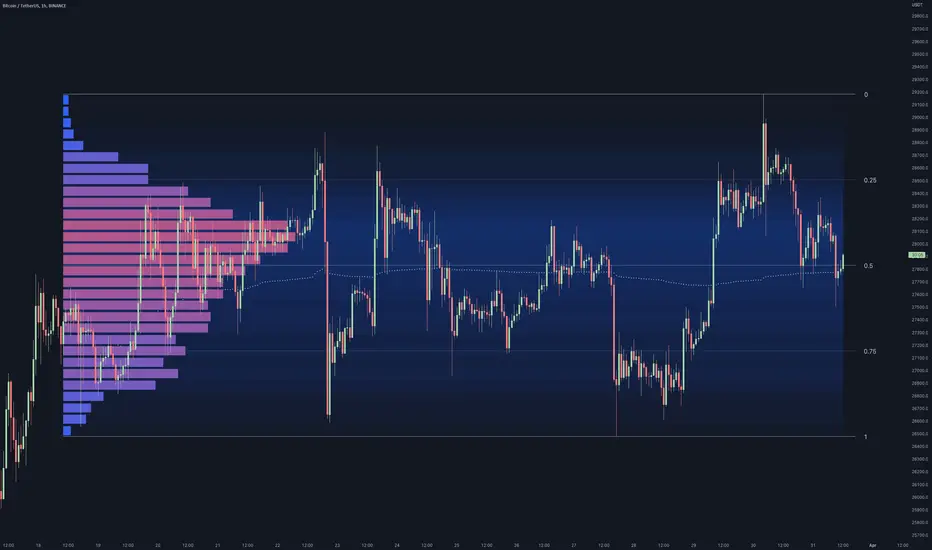
DSMS - DeltaSurge Matrix Station - 1M Scalping [SurgeGuru]DSMS - DeltaSurge Matrix Station
HOW TO READ THE CHART
=====================================
This guide explains every visual element you see on the chart.
DSMS is a volume profile + order flow indicator built for 1-minute Bitcoin scalping.
It shows WHERE institutional money is sitting and WHERE price is likely to react next.
=====================================
1. THE VOLUME PROFILE (left side of chart)
=====================================
The colored horizontal bars extending left from the candles are the volume profile.
Each bar represents a price level (called a "bin") and shows how much volume traded there.
LONGER BAR = more volume at that price.
BAR COLOR tells you who is in control:
- Green/teal bar = buyers dominated that level (bullish delta)
- Red/orange bar = sellers dominated that level (bearish delta)
- The more intense the color, the stronger the imbalance
SPLIT BARS (bull/bear breakdown):
If enabled, each bar splits into two halves showing exact buy vs sell volume.
Top half = sell volume, bottom half = buy volume.
HEATMAP (wide faded bars behind the profile):
The large transparent boxes behind the profile bars are the heatmap.
They show the same delta information but stretched wider for quick visual scanning.
Bright = high conviction. Faded = low conviction.
=====================================
2. KEY PRICE LEVELS ON THE PROFILE
=====================================
POC (Point of Control):
The bin outlined with a bright border is the POC -- the single price level
with the MOST volume. Price tends to gravitate back to the POC.
A small label shows the POC price and context like "EQUILIBRIUM" or "BULL ATK".
POC FLASH LINE:
A short dashed cyan line appears at the POC when a bounce is detected.
Trigger conditions: price is at the POC, the current candle is bullish after
a bearish candle, and volume is at least 1.2x average. This signals that
the POC is acting as active support and price is reacting to it in real time.
VA HIGH / VA LOW (Value Area lines):
Two horizontal lines mark the top and bottom of the Value Area -- the price range
where approximately 70% of volume traded. These act as support and resistance.
- VA High = resistance when price is below, breakout level when price pushes above
- VA Low = support when price is above, breakdown level when price drops below
When a breakout happens, the line turns green (up) or red (down) and gets thicker.
=====================================
3. LABELS ON PROFILE BINS
=====================================
Each profile bin can show a small text label. These describe what is happening
at that specific price level. Here is what each label means:
ABS (with up/down arrow):
"ABS▼ 7b" = Absorption detected. Institutional players are absorbing selling
pressure at this level (likely accumulating). The "7b" means it held for 7 bars.
ABS▼ = absorbing sells (bullish). ABS▲ = absorbing buys (bearish).
FLOW (with arrow):
"FLOW↑" or "FLOW↓" = A flow shift happened here. The delta direction reversed,
meaning buyers took over from sellers or vice versa. This is a momentum change signal.
FAIL (with arrow):
"FAIL↑" or "FAIL↓" = A flow shift was detected but FAILED to confirm.
The reversal started but price did not follow through. Shown in orange.
Often means the opposing side absorbed the move.
INVAL / INVALID:
"INVAL" or "INVALID" = A previously confirmed flow shift was invalidated.
Price reversed back through the shift level, canceling the signal.
Shown in orange. Treat the original shift direction as no longer valid.
BULL EXH / BEAR EXH:
"BULL EXH" or "BEAR EXH" = Exhaustion zone. Extreme delta (above 65%) combined
with FADING volume. The dominant side pushed too hard and is running out of fuel.
Shown in gold. Often precedes a reversal. Higher delta + lower volume = more exhausted.
IMBALANCE RATIO (number:1):
"4:1" = The ratio of buy volume to sell volume (or vice versa) at this bin.
A 4:1 ratio means one side has 4x the volume of the other.
Only shown when the imbalance exceeds the configured threshold.
ICE:
"ICE" = Iceberg order detected in this bin. High volume traded but price barely
moved, suggesting a large hidden order was absorbing all the activity.
CONFL / CONF+ / CONF-:
Confluence detected. Multiple signals (structure + order flow) agree on direction.
CONF+ = bullish confluence. CONF- = bearish confluence.
CONFLICT:
Structure says one thing, order flow says another. Be cautious.
STK (with multiplier):
"STK x3" = Imbalance stack. Three or more consecutive bins all lean the same
direction. Shows institutional pressure building across multiple price levels.
OB (with arrow):
"OB↑" or "OB↓" = This bin overlaps with an active Order Block (see section 6).
FVG (with arrow):
"FVG↑" or "FVG↓" = This bin overlaps with an active Fair Value Gap (see section 7).
"uFVG↑" or "uFVG↓" = Same but for a micro-level FVG (smaller gap detected
within the profile structure rather than on-chart candle gaps).
uSR:
Micro structure level. A price level that has been tested multiple times with
high volume -- acts as local support or resistance.
EQUILIBRIUM / BULL ATK / BEAR DEF / etc:
Context labels that describe the state of the bin:
- EQUILIBRIUM = balanced buyers and sellers
- BULL ATK = buyers attacking with increasing volume
- BULL DEF = buyers holding but volume fading
- BEAR ATK = sellers attacking with increasing volume
- BEAR DEF = sellers holding but volume fading
CONFIDENCE SCORE (number at end of label):
Example: "ABS▼ CONFL "
The number in brackets is a confidence score from 0-100.
Higher = more signals agreeing. Above 70 is strong.
DWELL TIME:
"8d" at the end means price spent 8 bars dwelling at this level.
More time at a level = stronger support/resistance.
=====================================
4. ARROWS ON PROFILE BINS
=====================================
Small arrows may appear to the right of profile bars:
DELTA ARROWS (^^):
Show if buying/selling pressure is accelerating or decelerating.
pointing up = bullish momentum gaining speed
pointing down = bearish momentum gaining speed
VOLUME ARROWS:
Show if volume is increasing or decreasing at each level.
Up arrow = volume building. Down arrow = volume fading.
VELOCITY BANDS:
Small colored boxes to the right of the profile.
Green = volume accelerating. Red = volume decelerating.
Only appears on high-volume bins.
=====================================
5. CVD LINE (curved line inside the profile)
=====================================
The colored line running through the profile area is the CVD
(Cumulative Volume Delta) line.
It tracks the running total of buy volume minus sell volume across the session.
- Line going UP = buyers accumulating over time
- Line going DOWN = sellers accumulating over time
HOW THE LINE COLOR WORKS:
The line color is NOT random. It checks the CVD value against 5 moving averages
(EMA 8, 13, 21, 34, and 55). Each EMA that CVD is ABOVE scores +1. Each EMA
that CVD is BELOW scores -1. The total score (-5 to +5) sets the color:
+5 (above ALL 5 EMAs) = deep forest green -- strong bullish momentum
+3 to +4 = bright green -- solid bullish
+1 to +2 = light green -- lean bullish
0 = gray -- neutral, no clear direction
-1 to -2 = light red -- lean bearish
-3 to -4 = bright red -- solid bearish
-5 (below ALL 5 EMAs) = deep dark red -- strong bearish momentum
In practice: when the line shifts from red to green, it means CVD has crossed
above its moving averages -- buying pressure is accelerating. When green turns
red, selling pressure is taking over. A gray section means CVD is choppy and
sitting between its averages with no conviction.
CVD LABEL (at the right end of the line):
"CVD +1.2K +5"
First number = raw CVD value (+1,200 net buy volume)
Second number = confirmation count (+5 means 5 consecutive bars where the
adaptive reset system confirmed the bullish direction)
The label color uses a separate gradient based on the confirmation count:
Deep green = many consecutive bullish confirmations
Deep red = many consecutive bearish confirmations
Yellow/gray = few or mixed confirmations
=====================================
6. ORDER BLOCKS (OBs) - colored boxes on candles
=====================================
Order Blocks are zones where institutions placed large orders.
They appear as colored boxes around groups of candles.
ACTIVE OBs (not yet tested):
- Green/teal box = bullish OB (expect support when price returns)
- Red box = bearish OB (expect resistance when price returns)
- Solid fill, extends rightward from the origin candles
BROKEN OBs (breakers):
- Same colors but with a transparent fill and border outline only
- A bullish OB becomes a breaker when price closes below its bottom
- A bearish OB becomes a breaker when price closes above its top
- Once broken, the OB flips role: old support becomes resistance and vice versa
- A dotted midline shows the 50% level of the broken OB
- If price then closes through the breaker in the new direction, it is removed entirely
Two detection methods run simultaneously:
- Fast: simple 3-bar pivot swings for reactive OBs near current price
- Deep: ICS-style fractal depth swings for structural OBs from further back
The "Detection Depth" setting controls the fractal depth (Short/Intermediate/Long Term).
=====================================
7. FAIR VALUE GAPS (FVGs) - striped zones on candles
=====================================
FVGs are gaps in the price action where one side (buyers or sellers) was so
dominant that price skipped over a range. Price tends to come back and fill these gaps.
They appear as small striped/hatched boxes at the gap location.
- Purple-ish stripes = the gap zone
- Each individual stripe is deleted when price crosses through its midpoint,
so the gap visually erodes from the inside out as price fills it
- After 21 bars, remaining unfilled stripes fade to show the gap is aging
- Once every stripe is filled, the FVG is fully removed from the chart
- Maximum 30 FVGs tracked at once (oldest removed first if exceeded)
=====================================
8. MULTI-TIMEFRAME BOXES (2m / 5m / 15m)
=====================================
Colored boxes extending behind and slightly ahead of the current candles.
These show FVGs and Order Blocks detected on HIGHER timeframes (2-minute,
5-minute, 15-minute charts) projected onto your 1-minute chart.
HOW TO TELL THEM APART:
Border style:
- Dashed border = FVG (Fair Value Gap)
- Solid border = OB (Order Block)
Thickness and length:
- Thin border, extends 20 bars back = 2-minute timeframe
- Thin border, extends 30 bars back = 5-minute timeframe
- Thick border, extends 50 bars back = 15-minute timeframe
Color:
- Cyan/teal = bullish (expect support)
- Orange = bearish (expect resistance)
When your 1-minute price touches a higher-timeframe structure, it carries
more weight because institutions watch those levels.
=====================================
9. PREDICTIVE CONFLUENCE ZONES (projected boxes)
=====================================
These are the "ZONE S x3" and "ZONE R x2" boxes that project AHEAD of current price
(to the right of the last candle).
They appear when multiple structures from different sources cluster at the
same price area:
- 1m Order Blocks + 1m FVGs + 2m structures + 5m structures + 15m structures
The system scans all unmitigated levels, finds where they overlap, and projects
a high-probability reaction zone.
"ZONE S x3" = Support zone, 3 structures converge here (green box)
"ZONE R x2" = Resistance zone, 2 structures converge here (red box)
Higher count = stronger zone. These are the highest-conviction levels on the chart.
=====================================
10. SIGNAL LABELS ON CANDLES
=====================================
These labels appear directly on or near candles when specific conditions are met:
SWEEP LABELS (cyan/magenta bubbles):
Example: "VA High 8"
A liquidity sweep happened -- price wicked past a key level and reversed.
The name shows which level was swept. The number is a quality score.
Higher score = more reliable sweep. Cyan = bullish sweep. Magenta = bearish.
ICE (cyan/red squares):
Small squares below (bull) or above (bear) candles.
"ICE 2.3x" = Iceberg order detected. Volume was 2.3x average but price
barely moved. A hidden large order was absorbing all activity.
COILED:
"COILED " = Price has been compressing (low volatility) for 4 bars
while sitting near a wall of support/resistance. Like a spring ready to release.
Green = bullish coil (expect breakout up). Red = bearish coil (expect breakdown).
!!SR (with arrow and count):
"!!SR 5x" = A wall of 5 micro-structure levels stacked at this price.
Strong support (arrow down, green) or resistance (arrow up, red).
CVD DIV:
"CVD DIV (up arrow)" = Bullish CVD divergence. Price is making lower lows but CVD
is improving -- hidden buying.
"CVD DIV (down arrow)" = Bearish CVD divergence. Price making higher highs but CVD
declining -- hidden selling.
VA BREAK:
"VA BREAK (up arrow)" or "VA BREAK (down arrow)" = Price just broke out of the Value Area.
A thick green or red line extends forward showing the breakout level.
This is a high-momentum signal.
VOLUME SPIKE:
"x3.2" = Volume on this candle is 3.2x the average. Shows in magenta above the candle.
REJECT:
"REJECT (arrow)" = Price momentum is pushing into a wall of support or resistance.
Warns of a potential rejection/reversal at that wall.
=====================================
11. SEQUENCE PATTERNS (triangles)
=====================================
These track a full institutional flow sequence through 4 stages:
1. ABSORPTION = institution absorbs orders at a level
2. FLOW SHIFT = delta reverses confirming direction
3. SWEEP = liquidity grab confirms intent
4. BREAKOUT = Value Area breakout completes the pattern
PROGRESS LABELS (small, during build-up):
"SEQ:SHIFT" or "SEQ:SWEEP" = Sequence is building, currently at that stage.
COMPLETED SEQUENCE (large triangle + label):
Hot pink triangle (up or down) with "SEQ BULL " or "SEQ BEAR ".
The number is the sequence score. This is the highest-confidence signal in DSMS.
A full 4-stage institutional sequence just completed.
=====================================
12. CANDLE TECH (colored candle borders)
=====================================
Certain candles get a colored border and a small label:
- Green border = bullish pattern detected (hammer, bullish engulfing, etc.)
- Red border = bearish pattern detected (shooting star, bearish engulfing, etc.)
The label shows:
"R 5" = Reversal pattern, score 5
"(up arrow) 3" = Continuation pattern, score 3
Higher score = more confirming factors (CVD alignment, volume surge, trend direction).
Thicker border = stronger pattern.
=====================================
13. LIQUIDITY VOID LINES
=====================================
Yellow dashed horizontal lines extending left from the profile.
These mark price levels with very low volume -- gaps where price moved
through quickly without much trading. When price returns to these levels,
it tends to move through them fast again or react sharply.
=====================================
14. STATE OF THE ARENA TABLE (corner dashboard)
=====================================
The table in the corner of the chart is the real-time scoring dashboard.
It combines all signals into one weighted score from -100 (max bearish) to +100 (max bullish).
HEADER ROW:
Shows the overall market state and final score.
States: BREAKOUT, TRENDING, COMPRESSED, CONTESTED, or NEUTRAL.
COMPONENT ROWS (each scored -100 to +100, weighted into final score):
Delta Flow (10%) -- raw buying vs selling pressure on current bar
CVD Flow (10%) -- cumulative volume delta trend and EMA band position
Flow Shift (9%) -- recent delta direction reversals
Absorption (9%) -- institutional stop hunt detection
Sequence (8%) -- institutional flow sequence progress
Confluence (7%) -- structural + psychological signal agreement
OB/FVG (7%) -- nearest order block or gap bias
Sweep (7%) -- recent liquidity grab signals
MTF (6%) -- multi-timeframe alignment (2m/5m/15m)
Volume (6%) -- spike detection
Walls (6%) -- support/resistance cluster strength
Accel (5%) -- delta acceleration (2nd derivative of momentum)
Iceberg (4%) -- hidden institutional order detection
Candle (3%) -- pattern recognition score
POC Shift (3%) -- value area migration direction
The final score is the weighted sum, clamped to -100 to +100.
70+ or below -70 = STRONG conviction
40-69 = MEDIUM conviction
15-39 = WEAK conviction
Below 15 = no clear direction
Each row shows a text status, numeric score, and a visual bar made of blocks.
Green blocks = bullish. Red blocks = bearish. More blocks = stronger signal.
SIGNAL SECTION (bottom of table):
Shows the single highest-priority actionable signal right now.
"Key" = what the signal is based on
"Action" = suggested stance (BUY / SELL / HOLD / CAUTION)
"Watch" = what to watch for next
=====================================
QUICK REFERENCE - COLOR GUIDE
=====================================
Cyan/Teal ......... Bullish structures, support, buy signals
Red/Orange ........ Bearish structures, resistance, sell signals
Green ............. Bullish momentum, buyers winning
Red ............... Bearish momentum, sellers winning
Yellow ............ Liquidity voids, caution zones
Purple ............ FVG gap zones
Hot Pink .......... Completed sequence patterns
Magenta ........... Volume spikes, sweep highlights
Gold .............. Predictive zone projections
White text ........ All on-chart signal labels
=====================================
ALERTS
=====================================
DSMS has 6 built-in alerts you can set from TradingView's alert menu:
Flow Shift -- delta direction reversed at a price level
Volume Spike -- volume exceeds threshold with bin concentration
VA Breakout -- price broke out of the Value Area
Strong Confluence -- multiple signals align above the confluence threshold
Absorption -- institutional absorption pattern detected
Sequence Complete -- full 4-stage institutional sequence finished
To set an alert: click the alarm clock icon in TradingView, select DSMS as
the condition source, pick the alert type, and choose your notification method.
Each alert can be toggled on/off in the settings panel.
=====================================
SETTINGS OVERVIEW
=====================================
Everything is toggleable. The main groups in settings are:
Core Settings -- lookback period, number of bins, profile width
Display Options -- toggle heatmap, delta flow, volume breakdown, POC
1M Scalping -- CVD line, zoomed-out mode, volume trend arrows
Signal Settings -- enable/disable each signal type
Advanced Tuning -- compression bars, confidence thresholds
OB/FVG Settings -- order block depth, FVG stripe count, max blocks
Candle Tech -- pattern detection and scoring
Liquidity Sweeps -- wick ratio, volume requirement, score display
Tier 3: Flow Intel -- sequence patterns, multi-timeframe (2m/5m/15m), predictive zones
Colors -- customize every major visual element
State of the Arena -- table position, size, and which components to show

BK AK-2 POC🦁👑 BK AK-2 POC — THE LEDGER. THE COURT. THE RECEIPTS. 👑🦁
All glory to Gd — the only true source of wisdom, restraint, and right timing.
AK is honor — my mentor’s standard: clarity, patience, no shortcuts, no gambling.
Update / Record: A previous version of this publication was hidden by PineCoders moderation due to insufficient description. This republish includes a fully self-contained explanation of what the script does, how it works, and how to use it.
1) What this script does (outputs)
BK AK-2 POC plots Volume Profile levels for New York RTH (and optional anchored profiles) so you can track current value, prior value, and event-based value.
RTH (current session):
POC (Point of Control): highest-volume price level (session “gravity”)
VAH / VAL (Value Area High/Low): boundaries of accepted trade (Value Area % input)
Prior RTH (previous session):
Prior POC + VAH/VAL
Optional Prior High / Prior Low
Anchored Profile (optional):
Anchored POC + VAH/VAL
Anchor types: Time, Last Pivot Low, Last Pivot High
Optional anchor time marker
Extras:
Optional histogram (Total or Delta Split)
Labels in Text / Icons / Compact with optional price + distance readouts
Optional “Open Anchored POC” and “Swing/Channel POC” overlays (toggleable)
2) How it works (calculation method)
This script builds a profile by:
Taking the price range over the selected window and dividing it into Bins.
Distributing each bar’s volume into the bins that overlap that bar’s range
If range is tiny, volume is attributed near the close (fallback behavior)
Selecting POC as the bin with maximum total volume
Building Value Area by expanding outward from POC until Value Area % is reached.
Histogram mode:
Total = total volume per bin
Delta Split = splits volume into buy/sell using candle direction (close ≥ open = buy, else sell) for a consistent approximation.
3) Data source options (Chart vs Lower TF)
You can build the profile from:
Chart volume (simpler / faster), or
Lower TF volume (higher fidelity): pulls lower timeframe candles using request.security_lower_tf, stores them internally, and uses them to distribute volume more accurately across bins.
This matters because a single HTF candle can hide a lot of internal structure—Lower TF reduces that “blocky” profile effect.
Performance controls: lookback tiers, max bars, bins, and max LTF candles are included to prevent overload.
4) How to use it (practical rules)
This tool doesn’t predict. It shows where business proved acceptance.
Inside Value (VA): balance / rotation conditions
mean/POC acts like gravity
fade extremes carefully, manage risk, don’t chase
Outside Value: acceptance vs rejection test
hold outside VA = acceptance (new regime)
fail back inside VA = rejection (often leads back toward value)
POC is not a buy/sell signal — it’s the highest agreement price. Use it to judge whether continuation is real or just noise.
Anchored profiles are for “new agreement” zones (after events/turns).
Prior session levels act like “contracts” — revisits are tests.
5) What’s original about this script (why it’s not a clone)
Compared to typical session POC/VA scripts, BK AK-2 POC adds:
Dual profile system: RTH session + optional Anchored profile in one tool
Multiple anchor types: exact time anchor + pivot-based anchors
Lower-TF volume engine with internal storage and safety caps for stability
RTH Open anchored POC option (separately toggleable)
Swing/Channel POC (last N swings) for structure-based “chapter” profiling
Label system (icons/compact/text) with optional distance readouts
Line clutter control (left cutoff) to keep charts readable
6) Limitations (honest constraints)
This is bar-based volume distribution across candle ranges (not tick-by-tick order flow).
Delta split is an approximation using candle direction; it’s meant for consistency, not perfect bid/ask classification.
Lower TF mode can be heavier; use bins/lookback responsibly.
👑 Joseph’s Lens — Pit → Prison → Viceroy (Dreams Turned Into Governance)
Joseph didn’t become viceroy because he “called direction.” He became viceroy because he did something rarer: he translated revelation into an operating system.
Pharaoh had the dream. Joseph delivered the edge: interpretation + structure + timing. He didn’t stop at “what will happen.” He immediately moved to what must be built so the nation survives it: storehouses, measurements, release protocol, and discipline under pressure. That’s why authority was placed on him — because he could govern reality, not react to it.
Joseph’s Viceroy Blueprint is exactly what this indicator enforces:
The Dream = the market’s story. The Ledger = the market’s proof. You don’t trade candles. You trade where business proved acceptance.
Storehouses = where the grain actually accumulates (POC). POC is where the crowd paid rent — undeniable commitment.
Granary walls = boundaries separating order from panic (VAH/VAL). Inside value is order; outside value is regime-change territory where acceptance/rejection decides outcomes.
The ring = permission to execute, not permission to improvise. Joseph released grain on timing, not emotion. Same here: acceptance grants permission; rejection demands stand-down.
Viceroy mindset: second in rank, first in discipline. Measure first. Act only when the record is established.
ZENITH: Joseph built the infrastructure that made the crisis survivable.
BK AK-2 POC is that same law on-chart: value is the inventory, POC is the storehouse, VA is the boundary, and execution only happens when proof grants permission.
🙏 Respect
Respect to AK — the standard behind the discipline.
All glory to Gd — the source of wisdom and endurance.
🦁👑 BK AK-2 POC — mapped like a viceroy… executed like a lion. 👑🦁

Consolidation Value Zones (Recio)Consolidation Value Zones introduces an original algorithm to identify consolidation ranges and locate areas of importance within them. This new method "looks" at the chart and draws zones based on price with the goal of producing actionable zones which appear natural, as if they were found through a human analysis.
> Consider the following...
The chart image above displays Bitcoin, at no specific date, for no specific reason. What I have done here is simply glanced at the chart for about 5 seconds, and circled a few areas which stood out as "obvious" consolidation. It does not take a savant to look at a chart and circle ranging price. However, what we have just done defies many common systems for identifying consolidation. We have located ranges of various zone lengths, as small as roughly 25 bars to as large as roughly 100 bars. Regardless of this, we still determined these zones with our eyes and brain in a few seconds, for some it's practically instant. The issue with us humans doing this, is that we are subjective. We did not really use any concrete rules to determine these areas with our eyes. So the problem becomes "How do we identify these zones in a way which seems natural to us with a repeatable system?" Because of this, my approach is simply a logical attempt to reverse engineer our human intuition.
> Consolidation Value Zones
The name of this indicator is generic. To dissect it, we are identifying consolidation ranges, then using a volume profile to determine the value zone within that range. The specific method used to identify these consolidation zones is something I've personally been referring to as the "skewer" method. Another name that may fit better is "Linear Range Alignment/Overlap".
Ultimately, the goal is to locate a single price level or range that overlaps many adjacent bars.
This should, in theory, return areas of visually obvious consolidation.
> The Skewer Method (Identification Method & Bar Gap Allowances)
One consistent concept across the different identification methods for determining consolidation is time. How long do we chop around before calling it consolidation? This is the "Identification Threshold". Once we have located a consolidation zone "this" wide, we will then consider it as consolidation.
In the chart image above, we are considering a six-bar consolidation formation. The figure on the left shows an example of a perfect raw bar overlap, we can see that the six bars all overlap at one price range. This is a perfect example of what we are looking to identify as consolidation. Unfortunately, if this was all we looked at, we would have a very scarce identification method.
For that reason, we have the example on the right, which shows the additional allowances for the identification of these ranges. At most, the example on the right shows a gapless three-bar overlap. However, if we allow the identification to bridge across the gaps, we are able to draw a zone directly through the center and still be within our parameters. This allowance is the "Bar Gap Allowance" and will determine the leniency of the identification.
Between our identification threshold and bar gap allowance, we can start to piece together how the script is "looking" at our chart.
> Detecting Consolidation (Live Detection)
To aid in transparency and user understanding, the live detection calculation can be seen on the chart as a box, skewering the recent historical bars with a number next to it, indicating the number of bars found as potential consolidation.
As we can see in the chart image above, the script, by default, is looking for a 15-bar consolidation, with a 5-bar gap allowance. In the image, the specific gap count is labeled, we can see the script scan backwards as far as it can before counting five gaps in the data. Once that occurs, the detection stops.
Notice how the zone found is a range, consisting of all price levels which meet the parameters. The lower level of the range only had two gaps, but the upper level reached five.
> Consolidation Range and Value Zones (Volume Profiles)
Once the script has identified the consolidation formation, it calculates a volume profile across the identified consolidation range. From this it calculates and draws the Point of Control (POC) and Value Area in addition to the full consolidation range.
Once we have our zones drawn, and understand what they identify, we can go one step further and apply concepts from volume profile trading.
Range High/Low: Displays the current extent of the identified consolidation.
Value High/Low: Shows the specific area within the consolidation where buyers and sellers found the most value.
POC: The single point, where the most volume was transacted during consolidation.
In a balanced market, we would anticipate price to rotate around POC, oscillating from Value High (VAH) to Value Low (VAL). In contrast, a market in motion moves directionally, building volume at new price levels as value, naturally the POC shifts with it.
> Zone Extensions
Unlike many other scripts, there is no mitigation logic at play here, since crossing a zone simply tells us "buyers and sellers are not currently active here", but it does not guarantee that value cannot return or react from previous areas of value.
Obviously the current zone will always be most relevant, but historical zones can retain relevance depending on the context of the market.
Remember: Each area of consolidation is an area where buyers and sellers were once facing off, resulting in price's consolidation. Amidst this, the value zone was the area of greatest agreement between the participants at that time. When moving outside of a range, we would typically look at historical value areas and price's interaction with them for further context.
Due to the ever changing market, there is no fixed extension lookback that will cover every scenario. By default, the Extension Lookback is "1", meaning the script will extend the most recent zone forward until a new zone is detected.
Note: For clarity, zone extensions are colored differently from core zones.
The following chart image shows a few examples of these unique interactions.
As seen in the chart image, looking to previous areas of value as well as POC can provide context in the form of acceptance or rejection at these levels, providing further insight into the auction for us to respond to.
The zones do contain logic to maintain a clean display. By default, the zones extend conditionally when price returns to the previous consolidation range. If desired, the zones can be extended regardless of price action; this can be toggled with the option "Regardless Extension Mode", as seen below.
> Hollow Candles & Zone Merging
When consolidation is identified, a hollow candle is drawn; these can be used to see exactly when each zone is identified. It is important to understand that consolidation zones stemming from the same origin are merged into one zone. This is a frequent occurrence when the consolidation threshold is passed, but the consolidation continues. For this reason you will often see multiple hollow candles in the later areas of the zones.
Similarly, zones from different origin points that overlap are also merged into one consolidation zone. This ensures that no core zones overlap.
Additionally, every time a zone is merged, a new volume profile for the area is calculated.
> Bar Gap Allowance Type (Technical Explanation)
The specific bar gap allowance value can be altered, but so can the type of allowance being used. While some analyses may benefit from counting the total amount of bar gaps within the consolidation, others may benefit from detecting based on consecutive bar gaps.
The chart image above displays the gap counts for each gap allowance type.
The total bar gap allowance type will count until the gap amount is reached, then terminate detection once the allowed number of gaps has been exceeded.
The consecutive bar gap allowance type resets its count once it finds a valid bar within range, by doing so, it only counts the bars that separate each island of in-range bars.
Both methods have merit.
> Implementation
This identification method has proven effective to identify consolidation across market types. As a result, there cannot be one configuration of settings to fit every application. Adapting the detection type and method for each trader's specific market conditions is highly recommended.
When determining parameters, it is helpful to consider time, as it plays a major role in the identification method.
On a 1D chart, the default threshold of 15 corresponds to 15 days, or about 3 weeks depending on the ticker. To identify periods of one-week consolidation, a threshold of 5 would be suitable. To detect perfect gapless weeks, a bar gap allowance of 0 could be used, as seen in the chart image below.
Additional Example:
In the chart image above, we see a 15-second forex chart over the span of a few hours. The detection parameters are set up to detect 15-minute consolidation with a 2-minute max dead zone (consecutive bar gap).
> Detection Source
By default, the script detects consolidation ranges using the full extent of candle wicks. While this is traditional, detection can also be done using only the candle bodies. These identifications are much more nuanced, detecting only from confirmed candle price action; they do not trigger at the same frequency as wick detection.
Optionally, a "Wick/Body Average" can be chosen as the source for detection; as the name implies, this uses the average value between the candle body and its respective wick.
> Additional Settings
The settings mentioned thus far serve as core parameters for identifying consolidation. The following parameters are simply included for the benefit of the advanced user. It is not recommended to adjust these settings under normal circumstances.
- Value Area Percent: Default = 68.26, while traditionally 70 for volume profiles, 68.26 is accurate to the values of a standard bell-curve distribution. The differences are minimal in application.
- VP Rows: Default = 99, Sets the number of rows to be used when calculating the Volume Profiles (VP); note that higher values will lead to a slower calculation. Max value: 999
> Final Notes
If you have made it this far, thank you for reading.
I hope you find value in this new consolidation identification system and understand the logic behind it.
That's it.
유료 스크립트

Fair Value Gap Profiles [AlgoAlpha]🟠 OVERVIEW
This script draws and manages Fair Value Gap (FVG) zones by detecting unfilled gaps in price action and then augmenting them with intra-gap volume profiles from a lower timeframe. It is designed to help traders find potential areas where price may return to fill liquidity voids, and to provide extra detail about volume distribution inside each gap to assess strength and likely mitigation. The script automatically tracks each gap, updates its state over time, and can show which gaps are still unfilled or have been mitigated.
🟠 CONCEPTS
A Fair Value Gap is a zone between candles where no trades occurred, often seen as an inefficiency that price later revisits. The script checks each bar to see if a bullish (low above 2-bars-ago high) or bearish (high below 2-bars-ago low) gap has formed, and measures whether the gap’s size exceeds a threshold defined by a volatility-adjusted multiplier of past gap widths (to only detect significantly large gaps). Once a qualified gap is found, it gets recorded and visualized with a box that can stretch forward in time until filled. To add more context, a mini volume profile is built from a lower timeframe’s price and volume data, showing how volume is distributed inside the gap. The lowest-volume subzone is also highlighted using a sliding window scan method to visualise the true gap (area with least trading activity)
🟠 FEATURES
Visual gap boxes that appear automatically when bullish or bearish fair value gaps are detected on the chart.
Color-coded zones showing bullish gaps in one color and bearish gaps in another so you can easily see which side the gap favors.
Volume profile histograms plotted inside each gap using data from a lower timeframe, helping you see where volume concentrated inside the gap area.
Highlight of the lowest-volume subzone within each gap so you can spot areas price may target when filling the gap.
Dynamic extension of the gap boxes across the chart until price comes back and fills them, marking them as mitigated.
Customizable colors and transparency settings for gap boxes, profiles, and low-volume highlights to match your chart style.
Alerts that notify you when a new gap is created or when price fills an existing gap.
🟠 USAGE
This indicator helps you find and track unfilled price gaps that often act as magnets for price to revisit. You can use it to spot areas where liquidity may rest and plan entries or exits around these zones.
The colored gap boxes show you exactly where a fair value gap starts and ends, so you can anticipate potential pullbacks or continuations when price approaches them.
The intra-gap volume profile lets you gauge whether the gap was created on strong or thin participation, which can help judge how likely it is to be filled. The highlighted lowest-volume subzone shows where price might accelerate once inside the gap.
Traders often look for entries when price returns to a gap, aiming for a reaction or reversal in that area. You can also combine the mitigation alerts with your trade management to track when gaps have been closed and adjust your bias accordingly. Overall, the tool gives a clear visual reference for imbalance zones that can help structure trades around supply and demand dynamics.
